
Document (BRD)
NOTOUT Exchange — Business Requirements Document
User Modules · Detailed Feature Specification, Business Rules & Client Approval
A About This Document
This document defines the detailed business requirements of the user-facing modules of the NOTOUT Exchange platform. Each module is described by its purpose, the features included, the user flow, applicable business rules, validation, and acceptance criteria. Features explicitly listed as excluded are outside the agreed scope for the current phase.
How to review
- Each module below is collapsed by default — click its title bar to expand the full detail, or click a Contents link to jump straight to it.
- Review each module against the described features, flows and rules.
- Mark Approved or Changes Required in the module approval block, and note specifics under Remarks.
- Reference screenshots are inserted per module in the "Reference screen" slot.
- Sign the consolidated approval on the final page to confirm scope.
B Contents
Click any module link to jump to it and expand its detail.
Module 01
User Authentication
›
The Authentication module governs how users create an account, sign in, explore the platform via a demo account, and recover access. It is the entry point to all platform features.
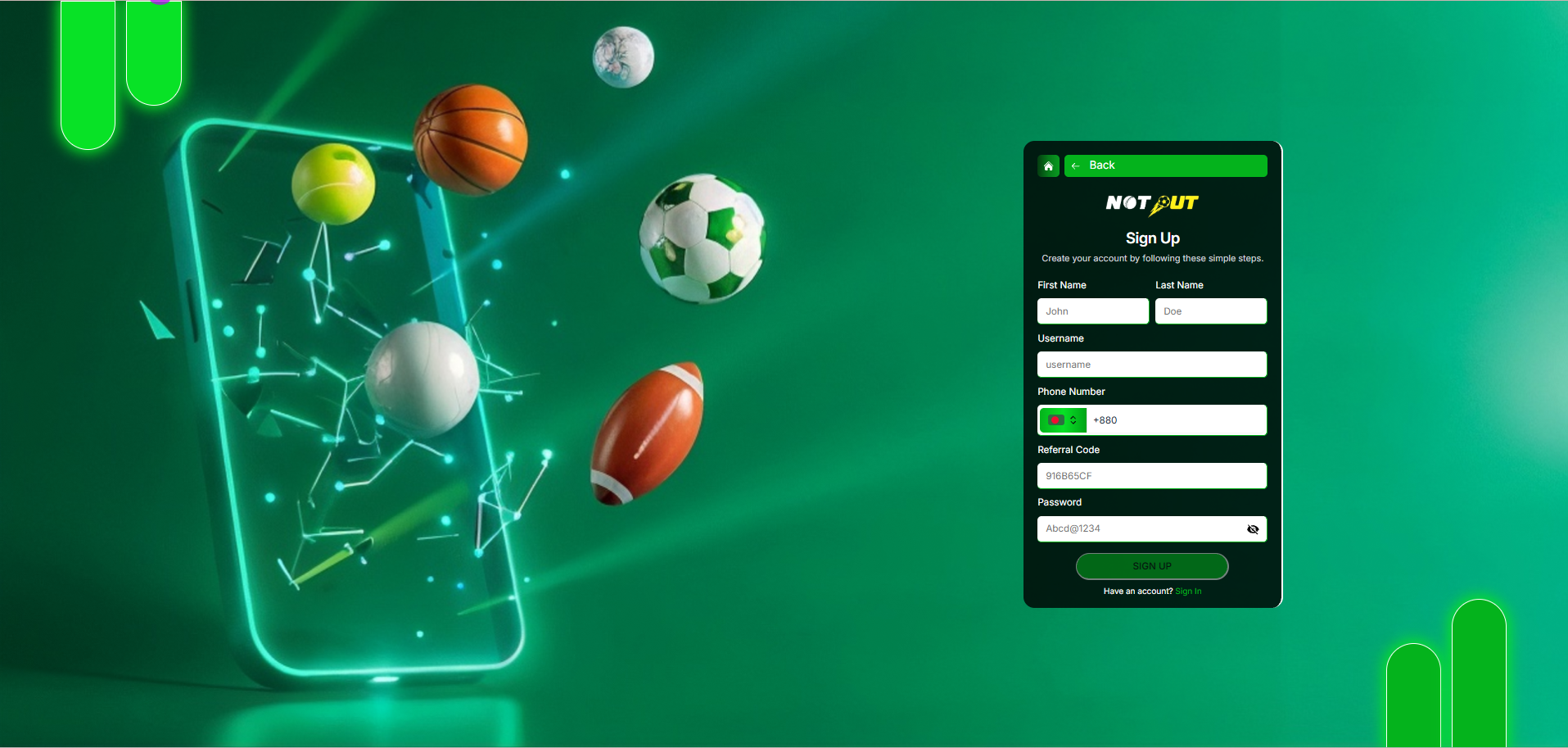
1.1 Registration
Reference screen
Purpose
Allows a new user to create an account using their personal details. Once registration is successful, the user can log in and access all available platform features.
Features included
| First Name | Included |
| Last Name | Included |
| Username | Included |
| Country Code | Included |
| Mobile Number | Included |
| Referral Code | Optional |
| Password | Included |
| Show / Hide Password | Included |
| Sign Up Button | Included |
| Sign In Redirect | Included |
| Back Button | Included |
Registration flow
Input fields
| Field | Mandatory |
|---|---|
| First Name | Yes |
| Last Name | Yes |
| Username | Yes |
| Country Code | Yes |
| Mobile Number | Yes |
| Referral Code | No |
| Password | Yes |
Validation
- Username must be unique.
- Mobile number must be unique.
- Password must contain at least 8 characters.
- Referral code is optional.
- Empty mandatory fields display validation messages.
Error scenarios
- Username already exists.
- Mobile number already registered.
- Required field missing.
- Invalid phone number format.
- Weak password.
Success scenario
- User account is created successfully.
- User is redirected to the Login screen.
Not included
OTP Verification Email Verification Google Login Facebook Login KYC Verification
1.2 Login
Reference screen

Purpose
Allows registered users to securely log in and access the betting platform.
Features included
| Username Login | Included |
| Password | Included |
| Password Visibility Toggle | Included |
| Login Button | Included |
| Forgot Password | Included |
| Sign Up Redirect | Included |
| Demo Login | Included |
| Back Button | Included |
Login flow
Validation
- Username is mandatory.
- Password is mandatory.
- Invalid credentials display an error.
- Blocked users cannot log in.
- Disabled users cannot log in.
Error scenarios
- Invalid username.
- Incorrect password.
- User account disabled.
- Server error.
Success scenario
- User is redirected to the Home Dashboard.
Not included
Two-Factor Authentication (2FA) Biometric Login Face ID Fingerprint Login
1.3 Demo Login
Purpose
Allows visitors to explore the platform without creating an account. Demo users receive virtual funds and cannot perform real-money transactions.
Features included
| Demo Login Button | Yes |
| Virtual Wallet | Yes |
| Sports Browsing | Yes |
| Exchange Betting | Yes |
| Casino Access | Yes |
Restrictions
| Real Deposit | No |
| Real Withdrawal | No |
| Profile Update | No |
| Referral Earnings | No |
| Real Betting | No |
Demo user flow
Dashboard indicators
The demo user should clearly see: Demo username, demo wallet balance, and a demo badge / indicator.
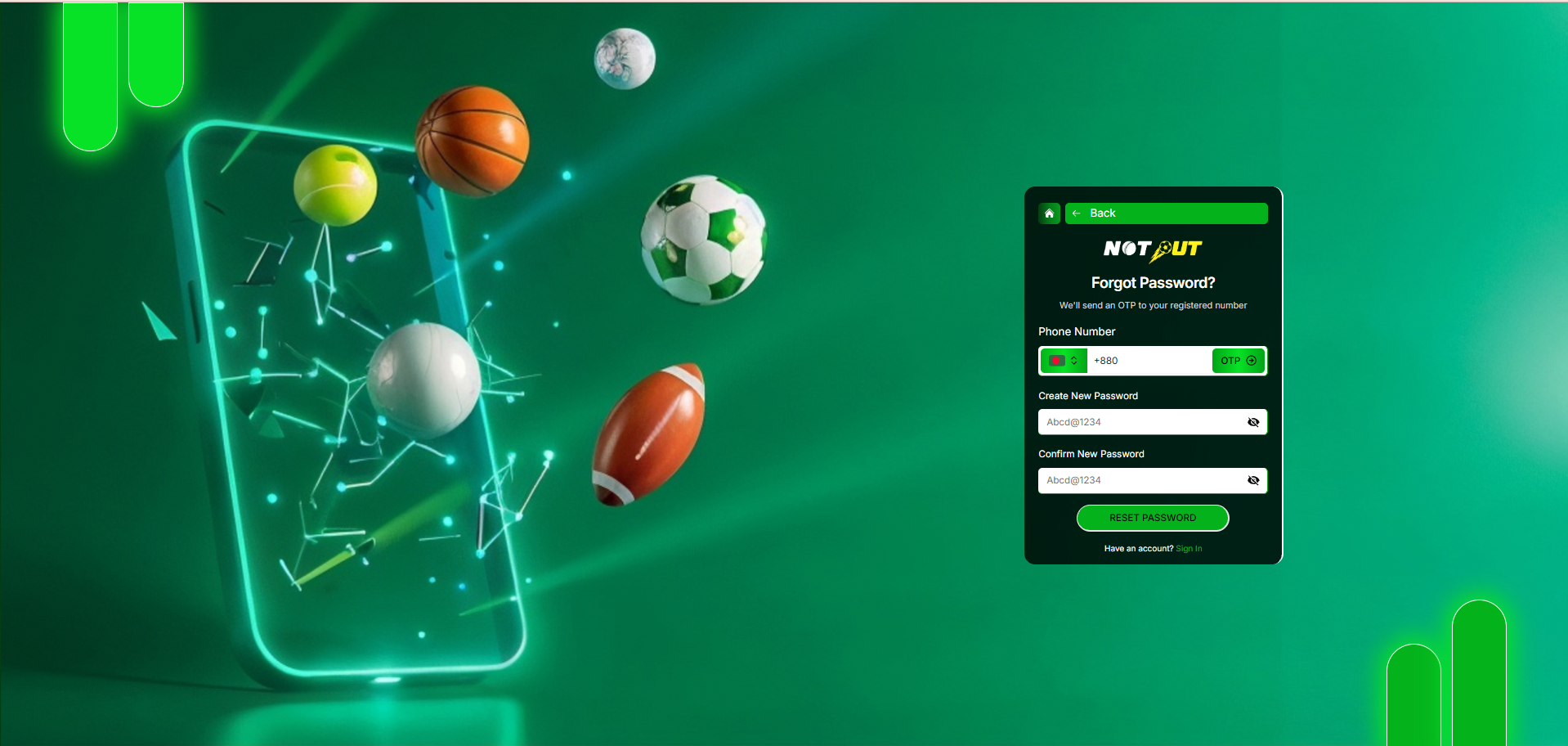
1.4 Forgot Password
Reference screen
Purpose
Allows users to reset their password using their registered mobile number.
Features included
| Mobile Number | Included |
| Country Code | Included |
| OTP Request Button | Included |
| Create New Password | Included |
| Confirm Password | Included |
| Password Visibility | Included |
| Reset Password Button | Included |
Password reset flow
Validation
- Mobile number must exist in the system.
- OTP must be valid.
- New password and confirm password must match.
- Password must meet security requirements.
Error scenarios
- Mobile number not registered.
- Invalid OTP.
- OTP expired.
- Password mismatch.
- Weak password.
Success scenario
- Password is updated successfully.
- User is redirected to Login.
Not included
Email Reset Link Security Questions Account Recovery via Support
Module 02
Home Dashboard
›
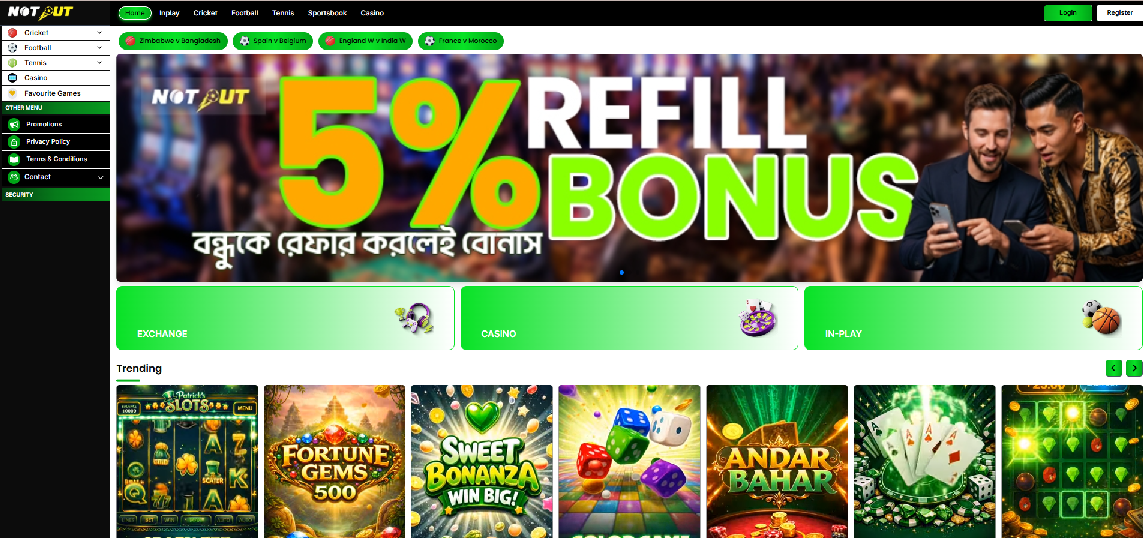
The Home Dashboard is the primary landing page after login or demo login. It provides quick access to sports betting, casino games, wallet actions, promotions, betting history, and account management.
Reference screens

Features included
| Top Navigation Menu | Included |
| User Information | Included |
| Wallet Summary | Included |
| Deposit Button | Included |
| Withdraw Button | Included |
| Left Navigation Menu | Included |
| Sports Categories | Included |
| Promotional Banner Slider | Included |
| Exchange / Casino / In-Play Shortcuts | Included |
| Trending Games | Included |
| Footer & Social Links | Included |
| Logout | Included |
Dashboard flow
2.1 Header Section
| Component | Description |
|---|---|
| Platform Logo | Redirects user to Home page |
| Home | Opens Dashboard |
| In-Play | Displays live betting events |
| Cricket / Football / Tennis | Sport-specific betting markets |
| Sportsbook | Static label only — no live Sportsbook events; not a navigable module in this phase |
| Casino | Casino lobby |
| Username | Displays logged-in user |
| Wallet Balance | Current available balance |
| Exposure | Current betting exposure |
| Deposit / Withdraw | Open Deposit / Withdrawal pages |
Business rules
- Username should always be visible.
- Wallet balance should refresh after every successful transaction.
- Exposure should update after placing or settling bets.
- Deposit and Withdraw buttons should remain visible on every page.
2.2 Left Navigation Menu
Sports categories
| Cricket | Cricket tournaments |
| Football | Football tournaments |
| Tennis | Tennis tournaments |
| Casino | Casino providers |
| Favourite Games | Saved favourites |
Wallet & account
| Promotions | Promotional offers |
| Deposit / Withdraw | Submit requests |
| My Wallet | Wallet summary |
| Bet History | Sports betting history |
| Casino Bet History | Casino betting history |
| Betting P&L | Profit & loss report |
| Turnover History | Betting turnover report |
| Account Statement | Complete wallet ledger |
| Bonus | Bonus info Future |
| Referral | Referral dashboard |
| Stake Settings | Default betting stake |
| My Profile / Change Password | Account management |
| Privacy / Terms / Contact | Policy & support |
| Logout | End current session |
2.3 Wallet Summary
| Field | Description |
|---|---|
| Username | Logged-in User ID |
| Wallet Balance | Available betting balance |
| Withdrawal Balance | Withdrawable balance |
| Exposure | Amount locked in open bets |
Business rules
- Wallet balance should update instantly after settlement.
- Demo users display a virtual wallet.
- Exposure should never exceed available balance.
2.4 Promotional Banner, Quick Access & Trending Games
Promotional banner
- Multiple auto-sliding banners with manual previous/next navigation.
- Banner click redirects to the configured page.
- Only active banners are displayed; sequence follows Admin configuration.
- Managed through the Admin Panel.
Quick access cards
| Card | Action |
|---|---|
| Exchange | Opens Exchange betting |
| Casino | Opens Casino lobby |
| In-Play | Opens Live events |
Casino categories (Home quick access)
The Home Dashboard surfaces casino games grouped into 8 categories: Trending · Most Played · International Casino · Indian Casino · Live Casino · Table · Slots · Crash. Each card shows the game thumbnail and name; clicking launches the game.
- Category composition and featured games are configured from the Admin Panel.
- Only active games are displayed.
2.5 SEO Content Block
A static SEO content block is shown just above the footer (admin-managed rich text) — used for on-page search-engine content, not for user interaction.
2.6 Footer
Included features
| Company Information | Yes |
| Safe Gaming Message | Yes |
| Copyright | Yes |
| Social Media Icons | Yes |
| Security Badge | Yes |
Social platforms
Instagram, Telegram, X (Twitter), TikTok, YouTube, WhatsApp, IMO.
Social links are seeded in code — they are not configurable from the Admin Panel.
2.7 Demo User Restrictions
| Browse Sports | Allowed |
| Browse Casino | Allowed |
| View Odds | Allowed |
| Practice Betting | Allowed |
| Deposit | No |
| Withdraw | No |
| Referral Earnings | No |
| Real Wallet | No |
2.8 Excluded Features (Phase 1)
VIP Membership Loyalty Program Live Chat Support Multi-language Push Notifications Personalized Recommendations Dark/Light Theme Toggle
2.9 Acceptance Criteria
| No. | Requirement |
|---|---|
| 1 | User is redirected to Home Dashboard after successful login. |
| 2 | Header menu is visible and functional. |
| 3 | Wallet summary displays correct values. |
| 4 | Left navigation displays all approved menu items. |
| 5 | Promotional banners are displayed correctly. |
| 6 | Quick access cards redirect to the correct modules. |
| 7 | Trending games are displayed and launch successfully. |
| 8 | Footer links and social media icons are visible. |
| 9 | Demo user restrictions are enforced. |
Module 03
Sports Sidebar Navigation
›
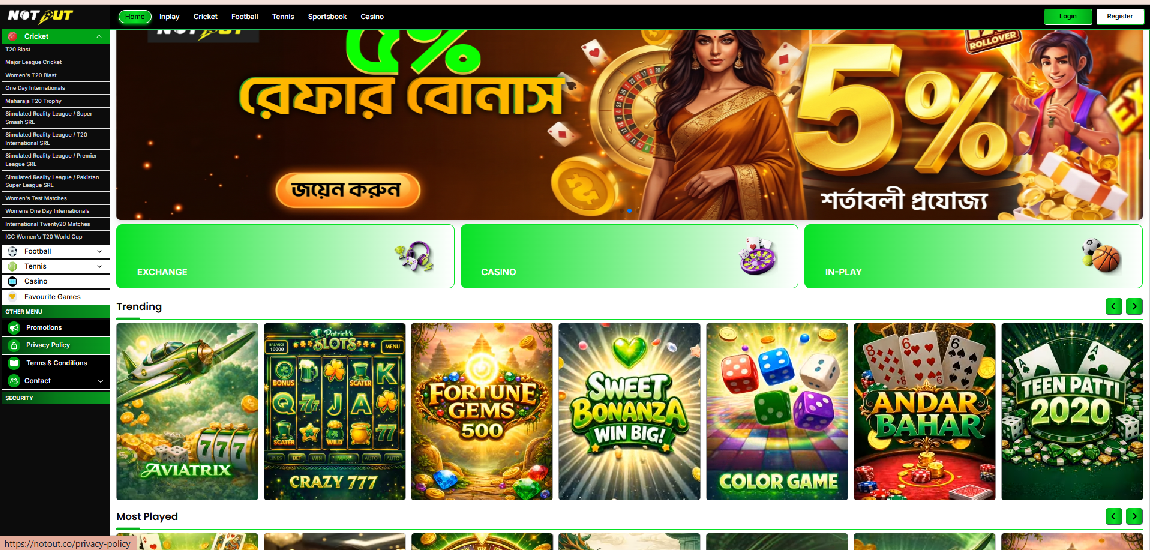
The Sports Sidebar provides quick access to sports categories, tournaments, account features, wallet functions, reports, and security actions. It is the primary navigation panel across the platform.
Reference screen
Features included
| User Profile Header | Included |
| Sports Categories | Included |
| Expandable Sports Menu | Included |
| Tournament Listing | Included |
| Wallet Menu | Included |
| Reports Menu | Included |
| Account Menu | Included |
| Security Menu | Included |
| Logout | Included |
Sidebar structure
User information
User avatar and username.
Sports categories
Cricket — tournament list:
- Simulated Reality League / T20 International SRL
- Women's T20 Blast
- T20 Blast
- Major League Cricket
- Test Matches
- One Day Internationals
- Afghanistan Regional T20
- Maharaja T20 Trophy
- ICC Women's T20 World Cup
Football · Tennis · Casino · Favourite Games
Wallet & reports
Promotions · Deposit · Withdraw · My Wallet · Bet History · Casino Bet History · Betting Profit & Loss · Turnover History · Account Statement · Bonus · Referral · Stake Settings
Account & security
My Profile · Change Password · Privacy Policy · Terms & Conditions · Contact · Logout
User flow
Business rules
- Only one sport category may remain expanded at a time; clicking a category toggles its tournament list.
- Clicking a tournament opens the event list for that tournament; only active tournaments are displayed.
- Demo users can browse sports and tournaments; real users can place bets based on account permissions.
- Menu items are configurable from the Admin Panel; disabled modules are not displayed.
Excluded features
Drag-and-drop customization Multi-language labels Tournament recommendations Recently viewed events Sidebar search
Acceptance criteria
| No. | Requirement |
|---|---|
| 1 | Sidebar is visible on desktop and mobile. |
| 2 | Sports categories expand and collapse correctly. |
| 3 | Tournament list loads successfully. |
| 4 | Wallet and report menus navigate correctly. |
| 5 | Profile and security menus open correctly. |
| 6 | Logout ends the user session. |
| 7 | Demo user restrictions are enforced. |
Module 04
In-Play Events Listing
›
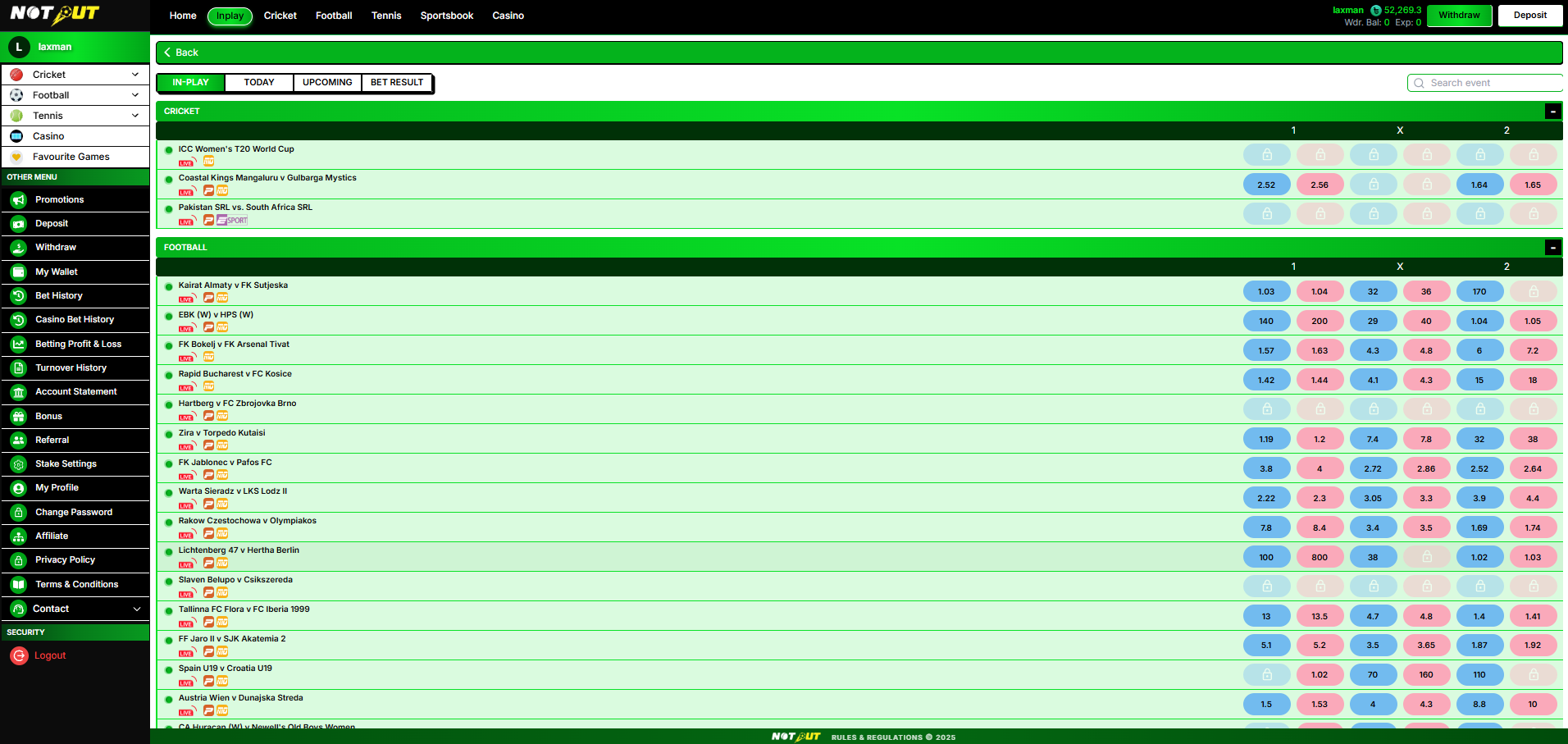
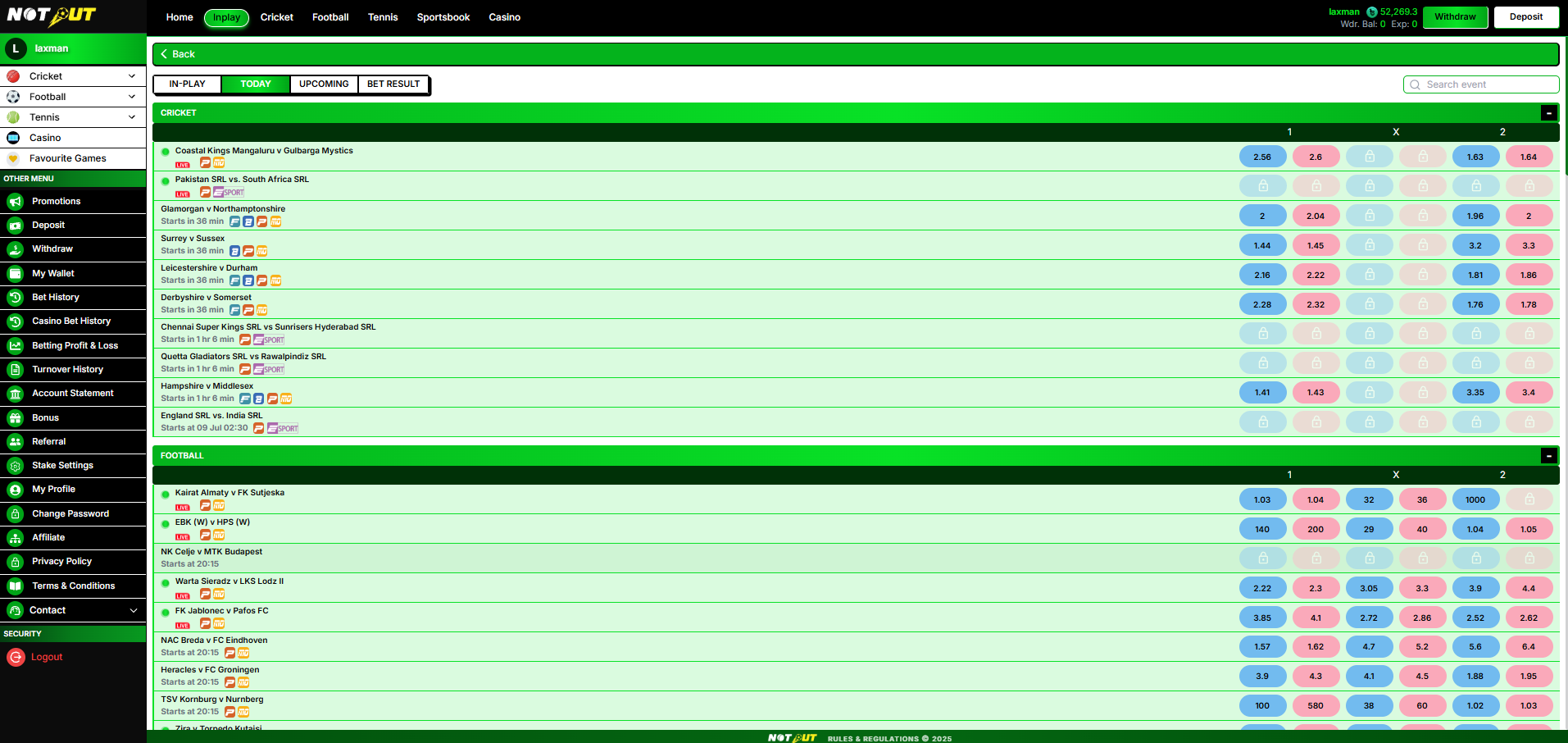
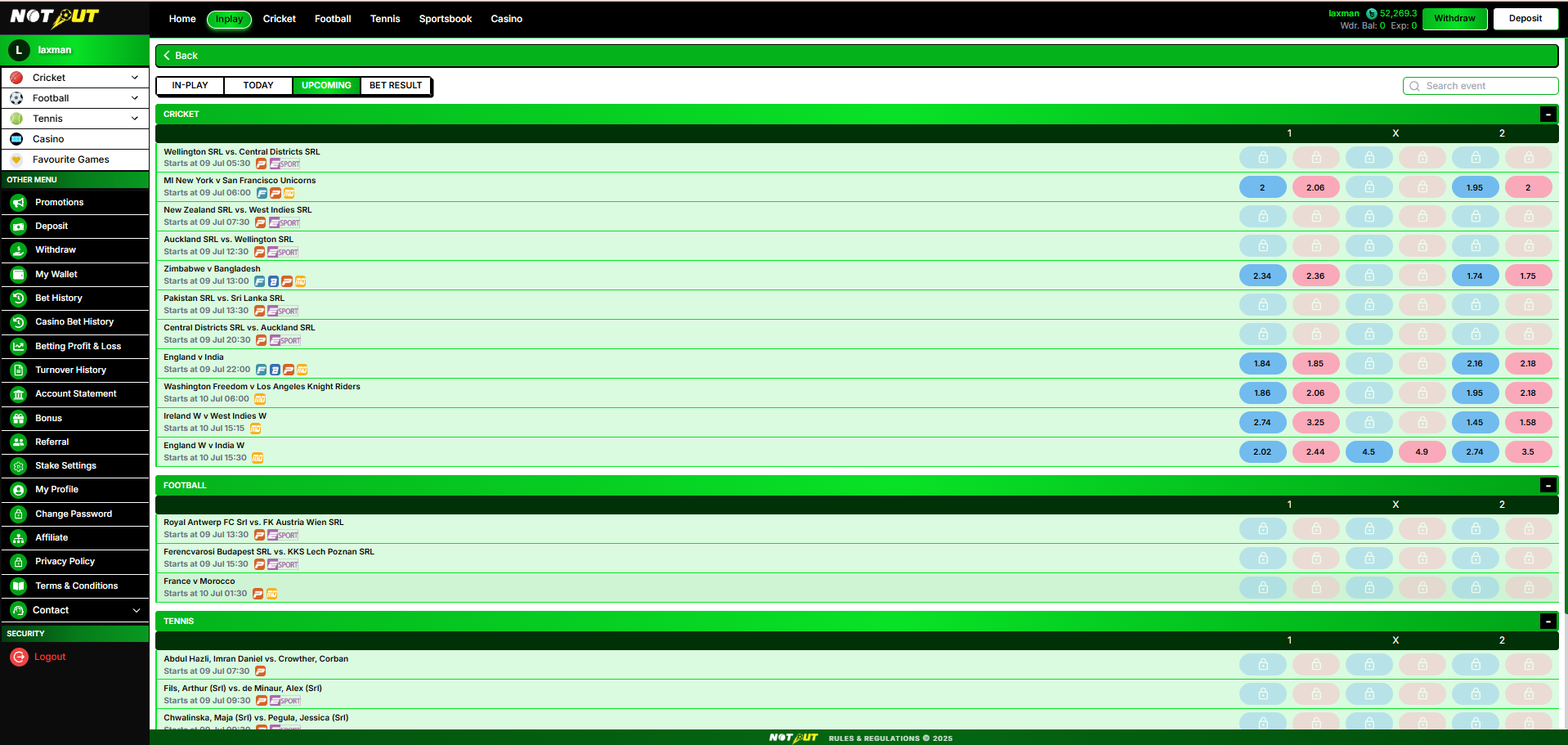
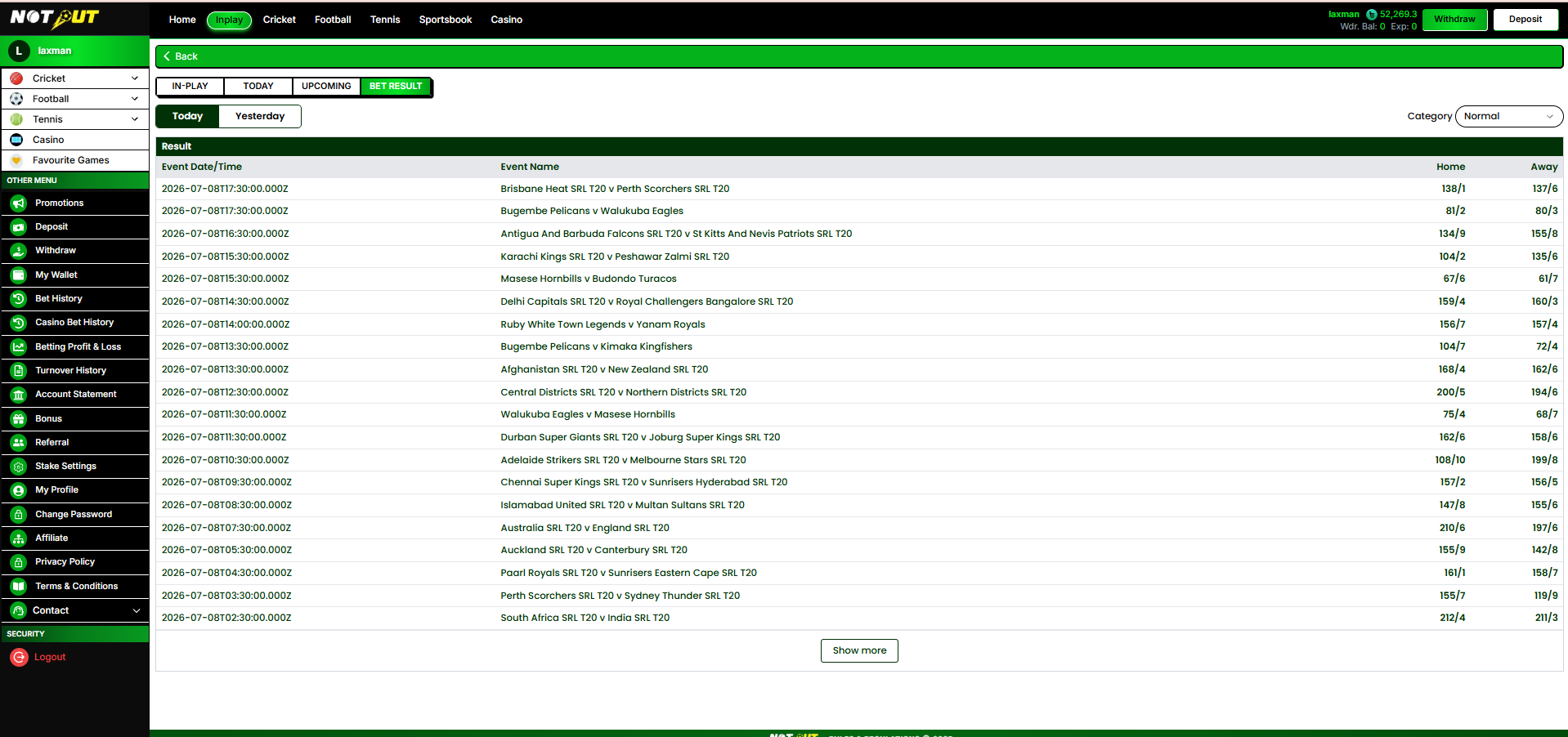
The In-Play module displays all live sports events currently available for betting. Users browse live matches across sports, view real-time odds, search events, and navigate to the detailed betting market. Odds are supplied by the integrated Sports API and update continuously.
Reference screens
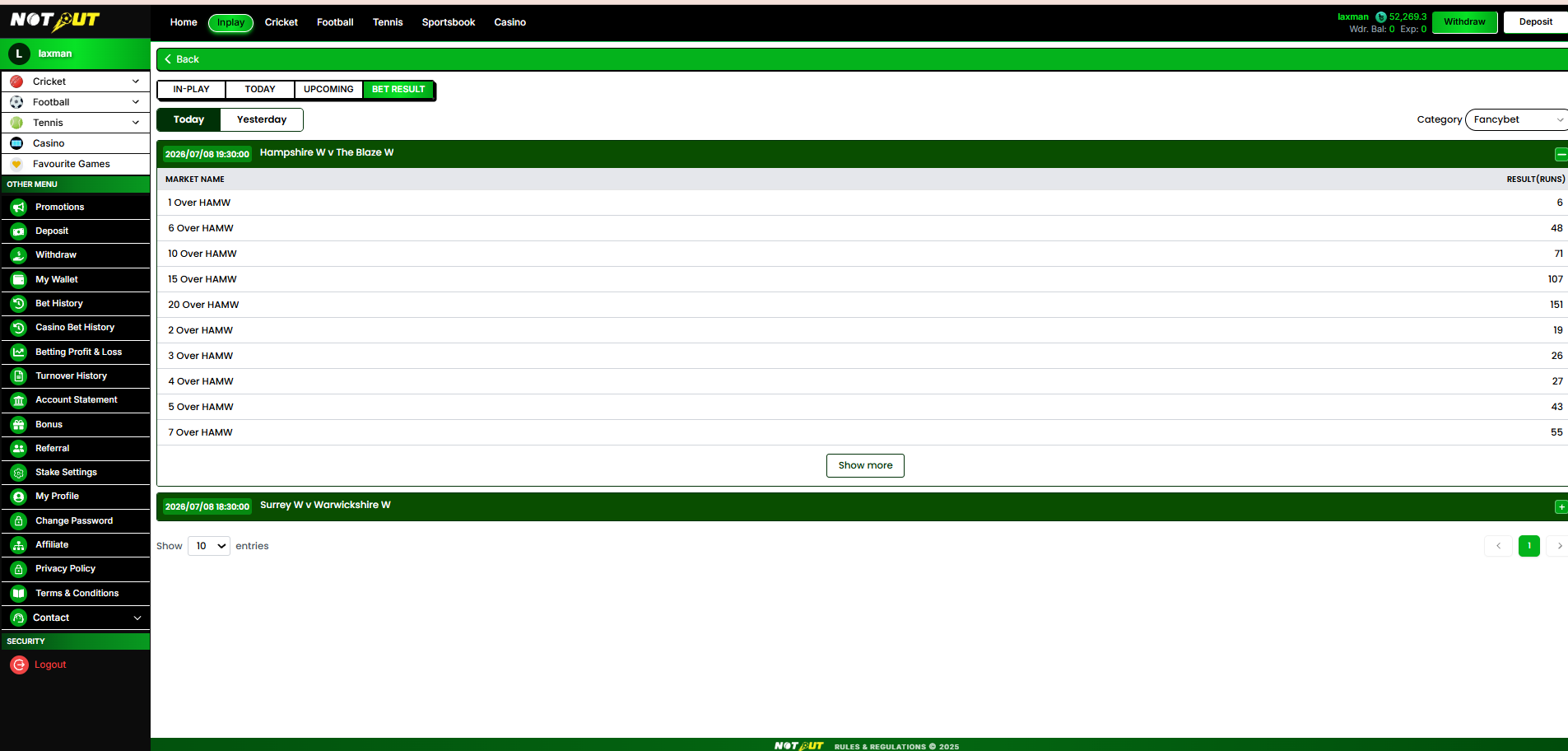
Navigation flow
Features included
| In-Play Navigation | Included |
| Today / Upcoming Events | Included |
| Search Event | Included |
| Live Sports Listing | Included |
| Event Odds | Included |
| Match Status | Included |
| Expand / Collapse Sport | Included |
| Market Navigation | Included |
Navigation options (filters)
| Filter | Description |
|---|---|
| In-Play | Only live matches currently available for betting |
| Today | Today's scheduled matches |
| Upcoming | Future scheduled matches |
In-Play is selected by default on load · only one filter active at a time · switching filters refreshes the event list.
Search event
Users can search by match name, tournament name, or team name. Search is case-insensitive, results appear instantly, and an appropriate message is shown when no results are found.
Sports sections & tournament listing
Live events are grouped by sport — Cricket, Football, Tennis (additional sports enabled from the Admin Panel). Each sport contains multiple tournaments, e.g. ICC Women's T20 World Cup, Big Bash League, Test Matches (Cricket); UEFA Champions League, English Premier League (Football); ATP, WTA, Grand Slam (Tennis).
- Only active tournaments are displayed; empty tournaments are hidden.
- Tournaments can be expanded or collapsed.
Event information
| Field | Description |
|---|---|
| Match Name | Teams or players participating |
| Tournament Name | Competition name |
| Live Indicator | Shows LIVE badge |
| Data Provider Icon | API provider indicator |
| Betting Status | Open / Suspended |
| Available Odds | Current betting odds |
Betting odds
| Col | Description |
|---|---|
| 1 | Home team Back / Lay odds |
| X | Draw odds (applicable sports) |
| 2 | Away team Back / Lay odds |
Blue and pink boxes represent available betting prices.
- Odds are supplied through the integrated Sports API and update automatically.
- Suspended markets display a lock icon; users cannot bet on suspended markets.
Expand / collapse & match selection
Each sport category can be expanded or collapsed; state persists until page refresh. Selecting any event redirects to the detailed betting market (Match information, Market odds, Bet slip, Open bets, Market status — covered in Module 06).
Demo user behaviour
| Browse live events | Allowed |
| View odds | Allowed |
| Open market pages | Allowed |
| Simulate bets (if enabled) | Allowed |
| Deposit funds | No |
| Withdraw funds | No |
| Real-money betting | No |
Business rules
- Only events received from the Sports API are displayed; event ordering follows API priority.
- Suspended events remain visible but betting is disabled.
- Completed events are automatically removed from the In-Play list.
- Event availability depends on market status received from the API.
- The system supports real-time updates without requiring a page refresh.
Excluded features
Favourite Events Pin Match Live Streaming Cash Out Bet Builder Multi-View Odds Comparison
Acceptance criteria
| No. | Requirement |
|---|---|
| 1 | User can access In-Play from the Header menu. |
| 2 | User can access In-Play from the Exchange card on the Home Dashboard. |
| 3 | In-Play, Today, and Upcoming filters function correctly. |
| 4 | Search returns matching events based on entered keywords. |
| 5 | Events are grouped correctly by sport and tournament. |
| 6 | Match odds are displayed according to the Sports API feed. |
| 7 | Suspended markets display a lock icon and do not allow betting. |
| 8 | Clicking an event opens the corresponding Market Details page. |
| 9 | Demo user restrictions are enforced. |
| 10 | Event data updates automatically based on the Sports API feed. |
Module 05
Sports Betting Market (Exchange)
›
The Sports Betting Market page shows all betting markets available for a selected event. Users view live odds, select betting options, manage their bet slip, monitor the scorecard, watch the live stream, track book position, and place bets. Available markets vary by event, by sport, and by data received from the Sports API.
Reference screens
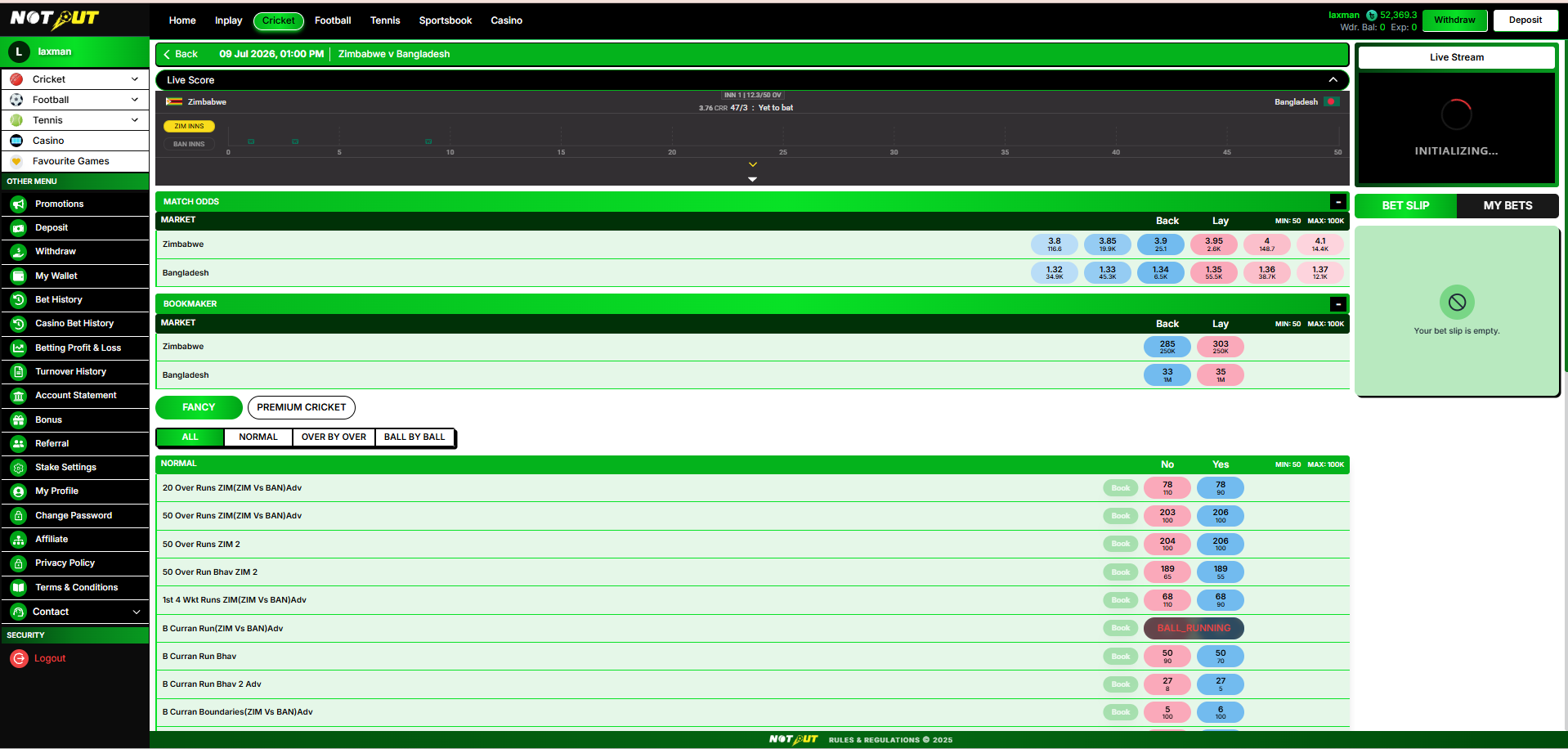
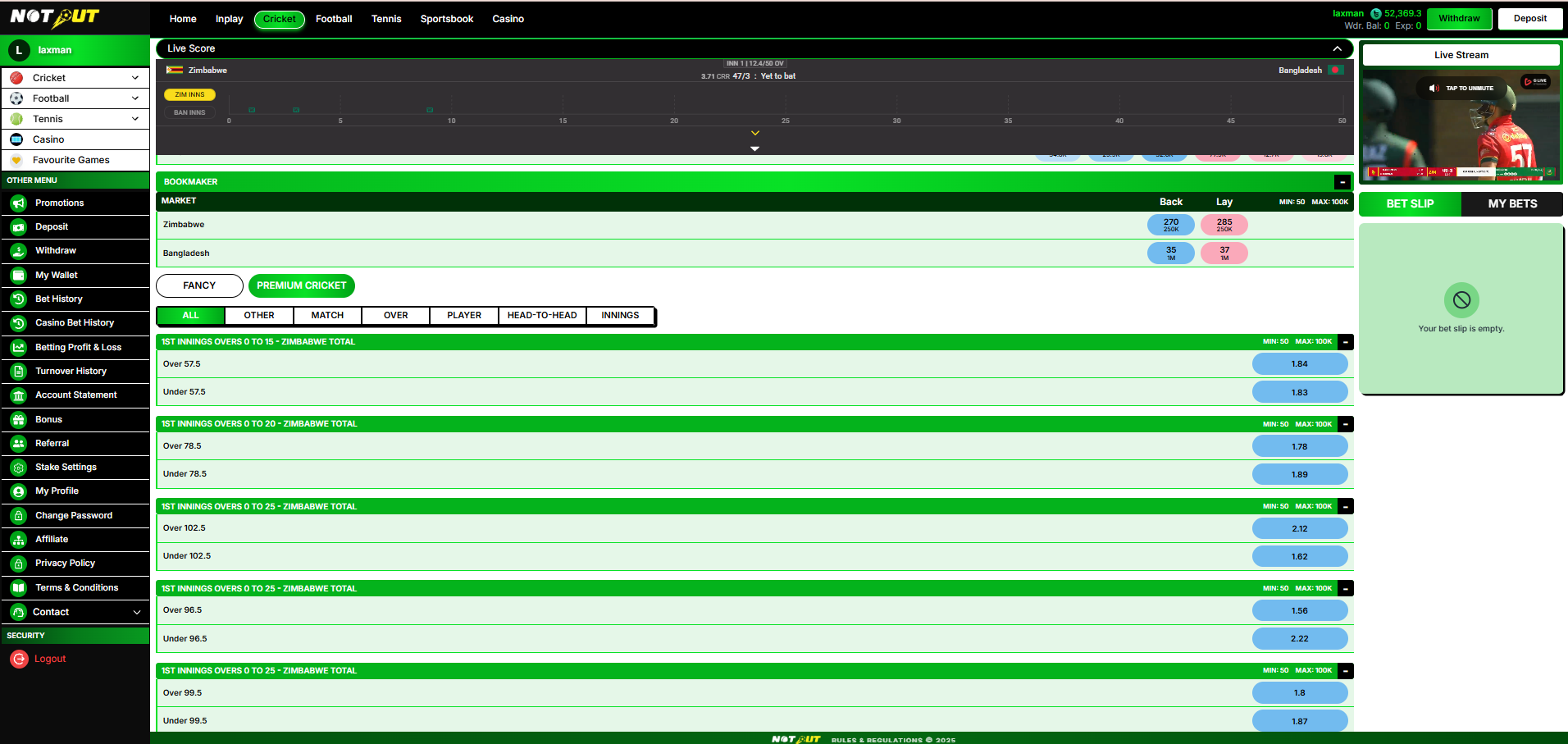
Navigation flow
Features included
| Match Information | Included |
| Scorecard | If available |
| Live TV | If available |
| Match Odds Market | Included |
| Bookmaker Market | Included |
| Fancy Market | Included |
| Premium Market | Included |
| Market Filters | Included |
| Bet Slip | Included |
| My Bets | Included |
| Back & Lay Betting | Included |
| Book Position / Calculator | Included |
| Market Expand / Collapse | Included |
5.1 Match Header
The header displays: Back button, match date & time, match name, user balance, and Withdraw / Deposit buttons.
5.2 Live TV
If a live video feed is available for the event, a live stream player is displayed (tap to unmute); otherwise "Live Stream Not Available" is shown.
- Live TV availability depends on the Sports API / streaming provider; if unavailable, the player is hidden.
5.3 Scorecard
For supported matches, the Scorecard displays the current score, overs, innings, run rate, current batting team, and the match timeline.
- Scorecard availability depends on the Sports API; if unavailable, the section is hidden.
- Scores refresh automatically.
- Live commentary is not included in the Scorecard section.
5.4 Match Odds Market
The primary exchange betting market. Runners: Home team, Away team, Draw (if applicable). Each runner displays best Back odds, best Lay odds, and available liquidity. Back shows up to three prices; Lay shows up to three prices.
- Odds are fetched from the Sports API and update in real time.
- Suspended selections display a lock icon and cannot be bet on.
5.5 Markets by Sport
Available markets vary by sport, as supplied by the integrated Sports API:
| Sport | Markets |
|---|---|
| Cricket | Match Odds · Bookmaker · Fancy · Toss · Premium |
| Football | Match Odds · Over/Under 0.5 · Over/Under 1.5 · Over/Under 2.5 · Premium |
| Tennis | Match Odds · Set 1 Winner · Set 2 Winner |
Market availability per event still depends on what the Sports API supplies for that specific match; not every listed market is guaranteed on every event.
5.6 Bookmaker, Fancy & Premium Markets
Bookmaker market
Available for selected cricket events — displays Back and Lay odds per team. Availability depends on the Sports API; if unavailable, the section is not displayed.
Fancy market
Mainly for cricket. Filters: All · Normal · Fancy1 · Over by Over. Example markets: 6 Over Runs, 10 Over Runs, Total Wickets, Session Runs, First Innings Score. Each market shows market name, Yes odds, No odds, min stake, and max stake.
- Fancy markets are configurable and may open or suspend at any time; odds update automatically.
Premium markets
Displayed when available. Filters vary by sport — for cricket: All · Match · Other · Head-to-Head · Over · Player · Innings. Example cricket markets: Winner (incl. Super Over), Innings Over-band totals (e.g. 1st Innings Overs 0–15 / 0–20 / 0–25 Over/Under), Team Highest Score, Top Batsman, Total Sixes, Toss Winner. Football and Tennis carry their own Premium sets where supplied by the API.
- Premium markets depend on the Sports API and may vary from match to match; not every event contains Premium markets.
Market categories & odds display
Where applicable, tabs filter available markets. Each market displays selection name, available odds, available volume, Back odds, Lay odds, and min/max bet. Odds update automatically during the match with no page refresh. Every market section supports expand / collapse.
5.7 Bet Slip
Located on the right of the page. Empty state shows "Your Bet Slip is Empty." After selecting odds, the Bet Slip displays: selected team, selected market, bet type (Back / Lay), selected odds, stake amount, profit/loss preview, and min/max bet.
Reference screen
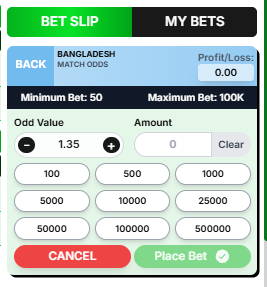
Stake selection
Users can enter a custom stake or choose predefined values:
100 500 1,000 5,000 10,000 25,000 50,000 100,000 500,000
Placement
- Buttons: Cancel · Place Bet.
- Profit/loss preview updates automatically based on odds, stake and bet type.
- After successful validation the bet is placed, a confirmation message is displayed, and the bet slip resets automatically.
Validation
The system validates minimum stake, maximum stake, market status, odds availability, user balance, and market suspension.
5.8 My Bets
Users can switch between Bet Slip and My Bets. My Bets currently shows a compact matched-bet list — match/selection, odds and stake — with a "See more" link for full detail.
Reference screen
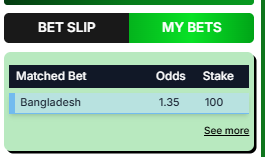
Current build shows limited columns (Match, Odds, Stake). Full column set (status, profit/loss, market) to be confirmed against further screenshots.
5.9 Book Position / Book Calculator
The platform displays real-time book position: potential profit, potential loss, book value, and exposure. Green value = potential profit; red value = potential loss. Selecting the book value opens a popup showing the calculated position for all outcomes — outcome, profit/loss, exposure, and net position — updating automatically whenever odds or stake change.
5.10 Market Status, Restrictions & Live Updates
| Status | Description |
|---|---|
| Open | Betting allowed |
| Suspended / Locked | Betting disabled |
| Closed | Market settled |
| Resulted / Settled | Outcome declared |
| In Play / Upcoming | Live / scheduled state |
| Void | Market voided |
Market restrictions
Certain markets define minimum bet, maximum bet, maximum exposure, and maximum profit; users cannot exceed these limits.
Live updates
The match page automatically updates live odds, market status, scorecard, bet status, book position, and available markets — without requiring a page refresh.
Business rules
- Market data is fetched from the integrated Sports API; odds update automatically.
- Suspended markets remain visible but non-interactive.
- Market visibility depends on event type — see Markets by Sport above.
- Minimum and maximum stake limits are configurable by the Admin Panel.
- Users must have sufficient wallet balance before placing a bet.
Excluded features
Cash Out Partial Cash Out Bet Builder Multi-Bet Builder Bet Sharing Social Betting One-Click Betting Market Favourites
Acceptance criteria
| No. | Requirement |
|---|---|
| 1 | User can open a match from the sports listing. |
| 2 | Match information is displayed correctly. |
| 3 | Scorecard and Live TV are shown when supported by the API, without live commentary. |
| 4 | Match Odds market displays real-time Back and Lay prices. |
| 5 | Bookmaker, Fancy and Premium markets display when available, matching the Markets by Sport table. |
| 6 | Bet Slip updates when a selection is clicked; odds are fixed (no +/− adjustment control). |
| 7 | My Bets displays the matched-bet list for the selected user. |
| 8 | Suspended markets cannot be selected for betting. |
| 9 | Odds refresh automatically without page reload. |
| 10 | Stake validation is enforced before bet placement. |
Module 06
Casino
›
The Casino module provides access to third-party casino games through an integrated Casino API. Users browse the lobby by category and provider and launch games directly; bets and results are recorded in Casino Bet History (Module 10).
Reference screen
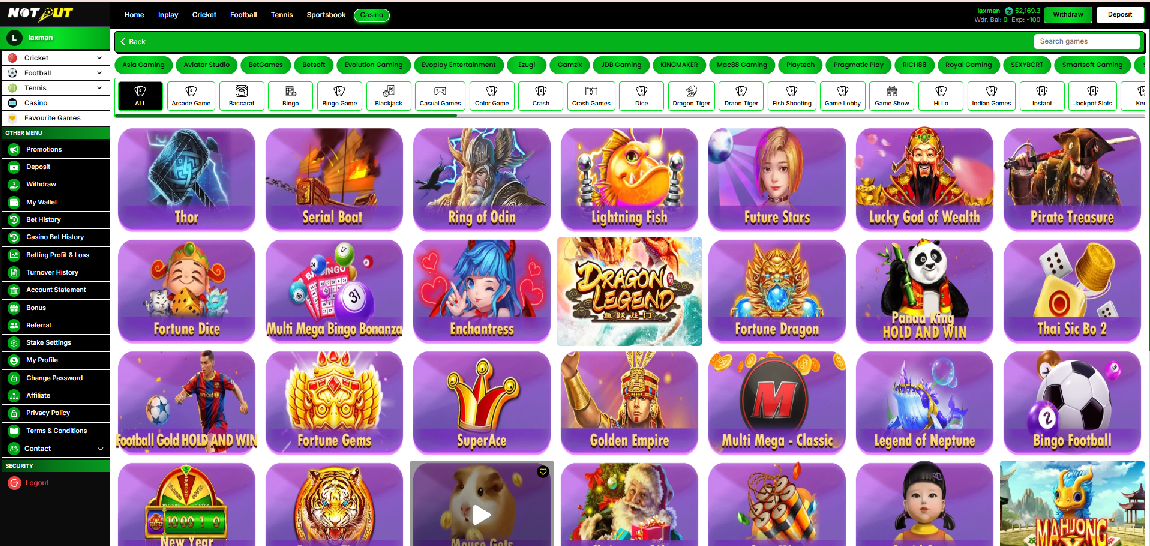
6.1 Casino Lobby
| Component | Description |
|---|---|
| Category tabs | Trending · Most Played · International Casino · Indian Casino · Live Casino · Table · Slots · Crash |
| Provider filter | Filter the lobby by game provider |
| Search | Find a game by name |
| Game cards | Thumbnail + game name; tap/click to launch |
6.2 Game Launch & Wallet
- Games launch in-platform through the Casino API (single-wallet integration — the main wallet balance is used).
- Bet amount is deducted at bet placement; winnings are credited on round settlement.
- Every casino bet and result is recorded and visible in Casino Bet History.
- Casino turnover counts toward deposit turnover and bonus turnover as defined in the Wallet & Bonus modules.
6.3 Availability & Restrictions
- Available games, categories and providers depend on the integrated Casino API and admin configuration; only active games are displayed.
- Demo users cannot place real-money casino bets.
- If a game or provider is unavailable, it is hidden or shown as disabled.
6.4 Acceptance Criteria
| No. | Requirement |
|---|---|
| 1 | Casino lobby displays categories, providers and game cards from the Casino API. |
| 2 | User can search and filter games; only active games are shown. |
| 3 | Game launches with the main wallet; bets debit and winnings credit correctly. |
| 4 | All casino bets appear in Casino Bet History. |
| 5 | Demo users are restricted from real-money play. |
Module 07
Manual Deposit (Deposit Request)
›
The Manual Deposit module lets a user add funds to their wallet by transferring money to an admin-configured payment account (e-wallet, local bank, or crypto) and submitting a deposit request with the transaction reference. This is a fully manual flow — there is no payment gateway. Submitted requests are reviewed by the banker / admin and the balance is credited only after approval.
Reference screens
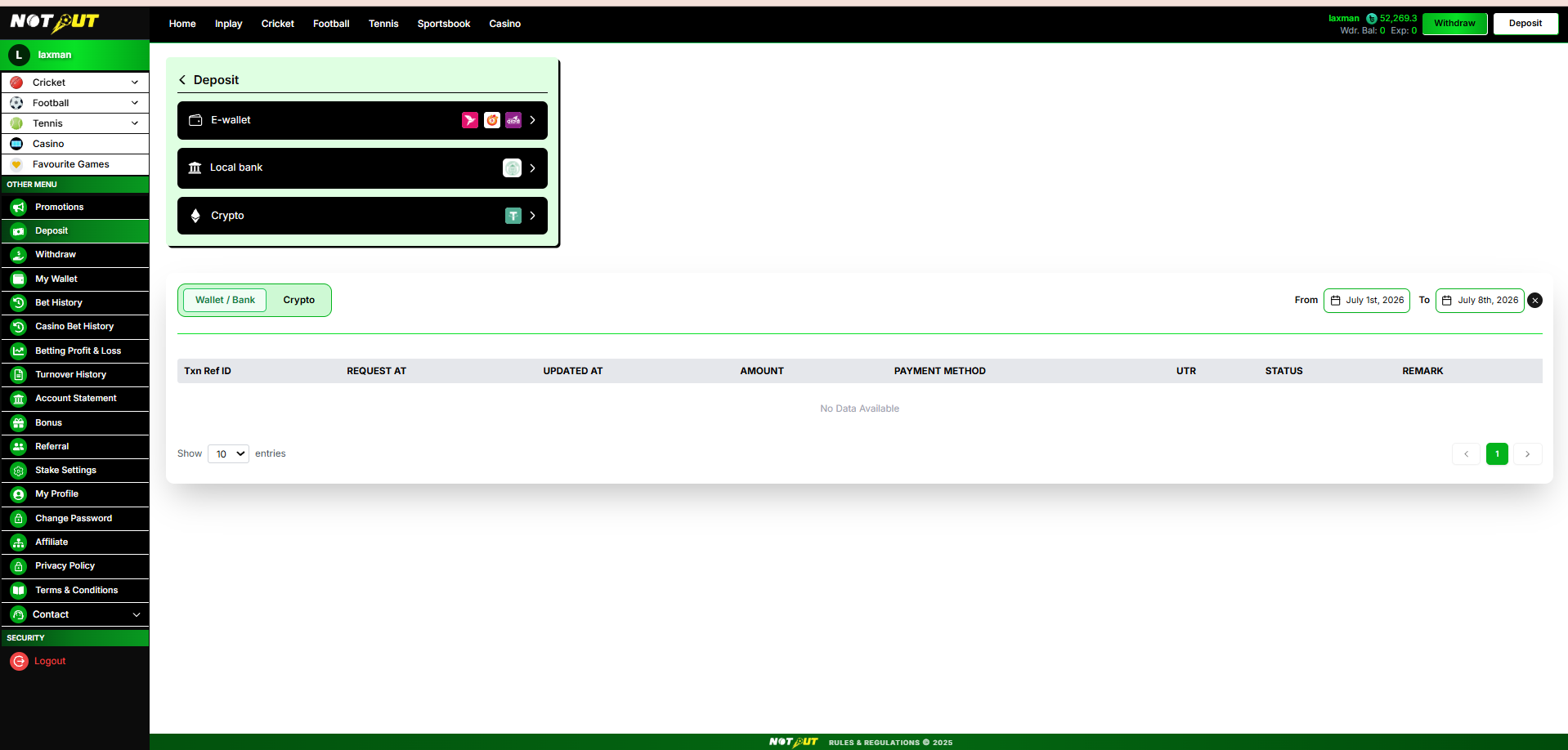
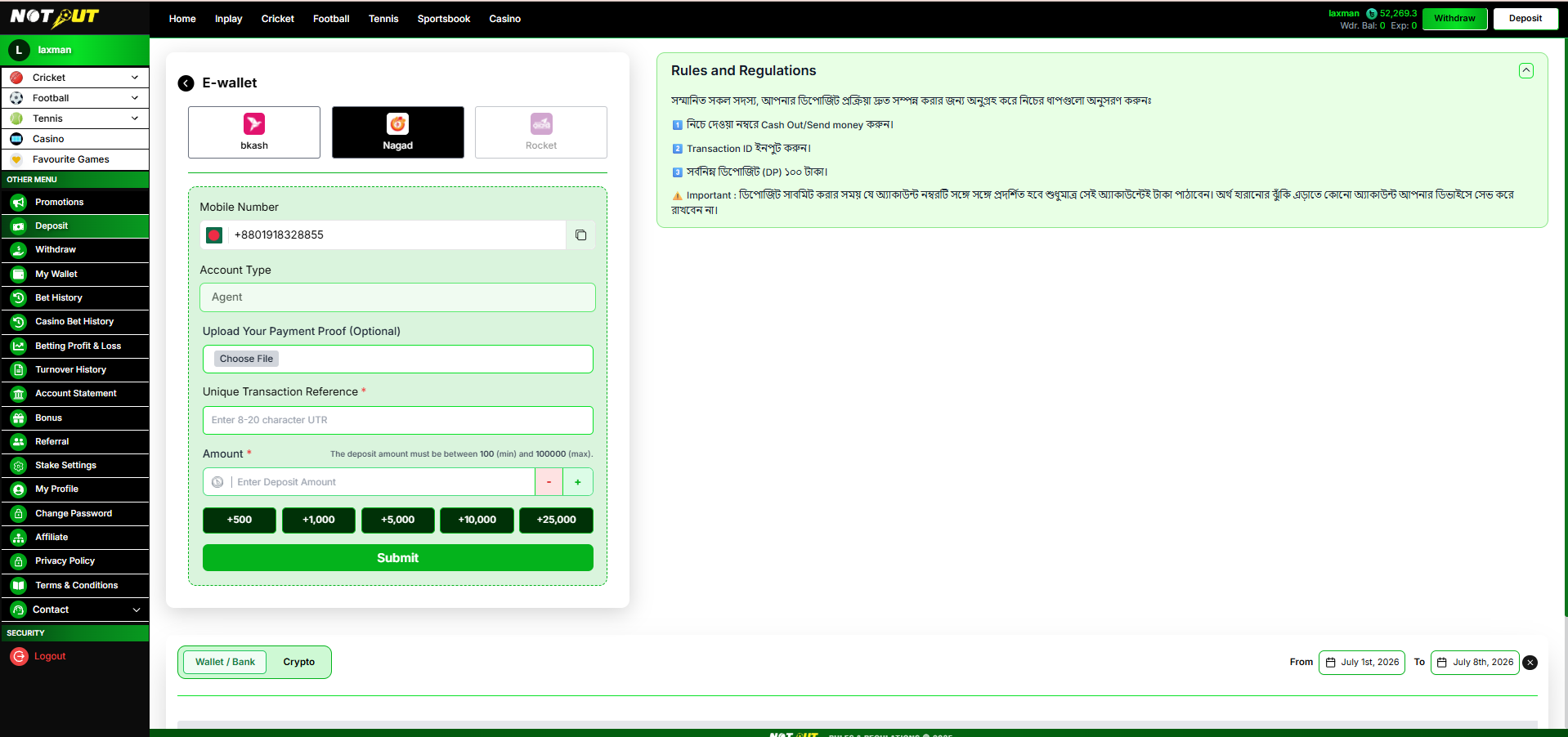
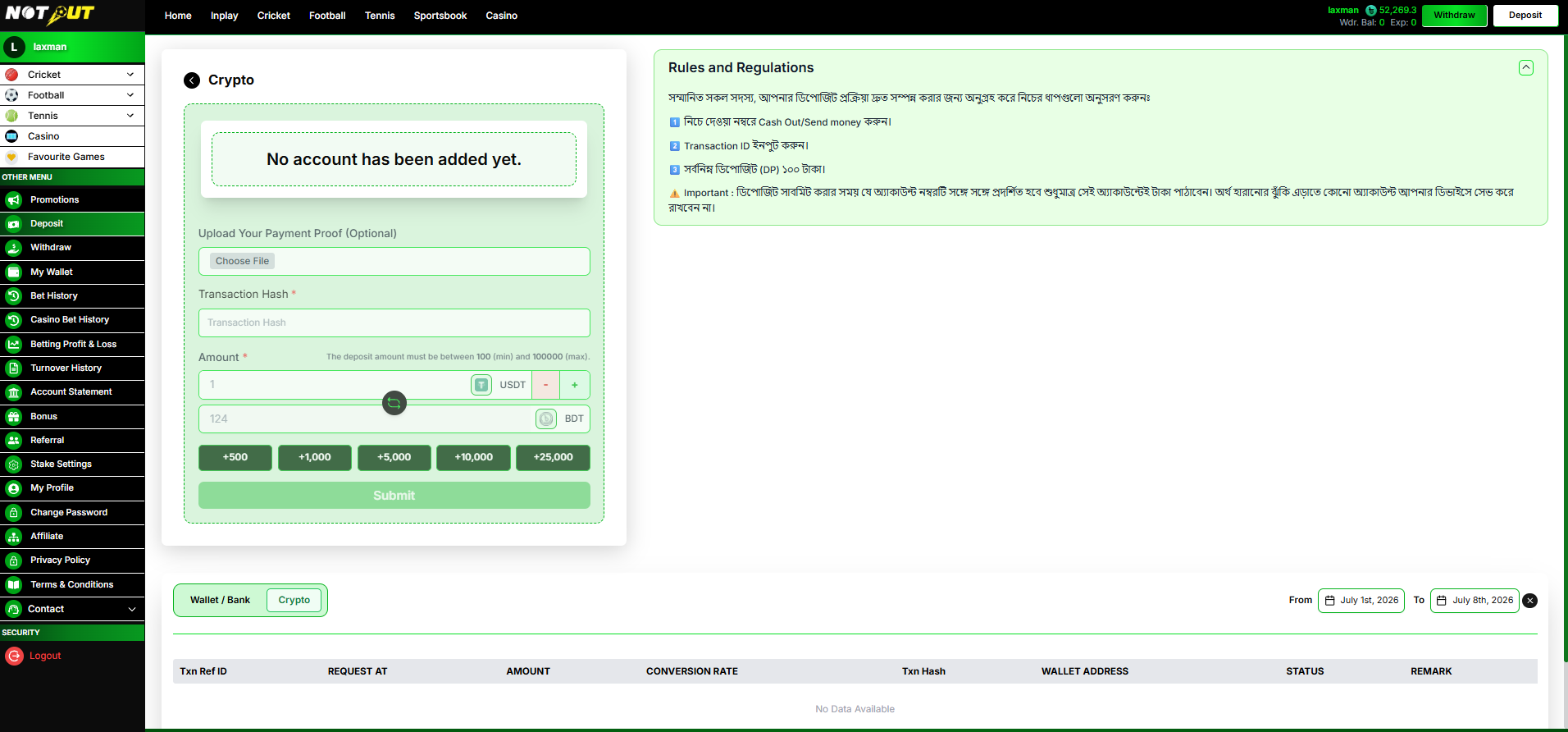
Features included
| Payment Method Categories (E-wallet / Local Bank / Crypto) | Included |
| E-wallet Providers (bKash / Nagad / Rocket) | Included |
| Admin-configured Account Details | Included |
| Copy Account Number | Included |
| Account Type Display (e.g. Agent) | Included |
| Upload Payment Proof | Optional |
| Unique Transaction Reference (UTR) | Included |
| Transaction Hash (Crypto) | Included |
| Amount with Min / Max Limits | Included |
| Quick-Add Buttons & Stepper | Included |
| Crypto Amount Conversion (USDT ↔ BDT) | Included |
| Rules & Regulations Panel | Included |
| Deposit Request Submission | Included |
| Transaction History & Filters | Included |
Deposit flow
7.1 Payment Methods
| Method | Options / detail |
|---|---|
| E-wallet | bKash · Nagad · Rocket (each configurable / can be disabled) |
| Local Bank | Bank transfer to an admin-configured account |
| Crypto | USDT wallet with live BDT conversion |
Only methods and providers configured in the Admin Panel are shown. Unavailable providers appear disabled.
7.2 E-wallet Deposit Form
| Field | Description | Type |
|---|---|---|
| Provider | Select bKash / Nagad / Rocket | Select |
| Mobile Number | Admin-configured account number, with copy button | Display |
| Account Type | e.g. Agent / Personal | Display |
| Upload Payment Proof | Screenshot of the transfer | Optional |
| Unique Transaction Reference (UTR) | 8–20 characters | Mandatory |
| Amount | No fixed minimum / maximum is enforced at this time | Mandatory |
Amount controls
Stepper (− / +) plus quick-add buttons: +500 +1,000 +5,000 +10,000 +25,000
7.3 Crypto Deposit Form
| Field | Description | Type |
|---|---|---|
| Wallet Address | Admin-configured crypto wallet / QR | Display |
| Upload Payment Proof | Screenshot of the transfer | Optional |
| Transaction Hash | On-chain transaction hash | Mandatory |
| Amount (USDT) | Entered in USDT with live BDT conversion at the configured rate | Mandatory |
If no crypto wallet is configured, "No account has been added yet." is shown and the Submit button is disabled.
7.4 Rules & Regulations Panel
Displayed alongside the form. Content is fixed and method-specific — it is not editable from the Admin Panel. Typical content:
- Cash out / send money to the account number shown below.
- Input the Transaction ID / UTR.
- Minimum deposit is 100 (BDT).
7.5 Empty States & Transaction History
Empty state
When the admin has not configured an account for the selected method, the form area shows "No account has been added yet." and the Submit button is disabled.
Transaction history
A history table lists all deposit requests, with a Wallet / Bank vs Crypto toggle, a From–To date range filter, and "Show N entries" pagination. Empty state: "No Data Available".
| Column | Description |
|---|---|
| Txn Ref ID | System-generated request reference |
| Request At | Timestamp the request was submitted |
| Updated At | Timestamp of the last status change |
| Amount | Requested deposit amount |
| Payment Method | E-wallet provider / bank / crypto |
| UTR | User-entered transaction reference / hash |
| Status | Pending / Approved / Rejected |
| Remark | Banker note (e.g. rejection reason) |
Request statuses
Pending awaiting banker review Approved balance credited Rejected not credited; see remark
7.6 Business Rules
- Payment accounts and providers are configured from the Admin Panel; only active methods are shown. The Rules & Regulations text is fixed and is not admin-configurable.
- Displayed account details are dynamic — the user must send funds to the exact account shown at submission time.
- No fixed minimum / maximum deposit amount is enforced at this time.
- UTR must be 8–20 characters; Transaction Hash is mandatory for crypto.
- Payment proof upload is optional.
- Crypto deposits display a live USDT → BDT conversion at the admin-configured rate.
- Every submission creates a request in Pending status routed to the banker; it is never auto-credited.
- On approval the wallet balance is credited; on rejection the remark explains the reason.
- Demo users cannot submit real deposits.
Not included
Automatic Payment Gateway Auto-credit / Auto-approval Card / Net-banking Recurring Deposits Automated UTR Verification
Exclusions above reflect the manual flow shown; adjust if any should move into scope.
7.7 Acceptance Criteria
| No. | Requirement |
|---|---|
| 1 | User can open Deposit from the header button and sidebar. |
| 2 | E-wallet, Local Bank and Crypto categories are displayed. |
| 3 | E-wallet providers are selectable; unavailable providers are disabled. |
| 4 | Admin-configured account details display correctly with a copy option. |
| 5 | When no account is configured, "No account has been added yet." shows and Submit is disabled. |
| 6 | Amount field accepts entry with no fixed min/max enforced at this time. |
| 7 | UTR (8–20 chars) / Transaction Hash is mandatory and validated. |
| 8 | Optional payment proof can be uploaded. |
| 9 | Quick-add buttons and the stepper update the amount correctly. |
| 10 | Crypto amount shows the correct USDT → BDT conversion. |
| 11 | Submitting creates a Pending deposit request routed to the banker. |
| 12 | Transaction history shows all columns, statuses and remarks correctly. |
| 13 | Date range and Wallet/Bank–Crypto filters work. |
| 14 | Demo users cannot submit real deposits. |
Module 08
Manual Withdrawal (Withdrawal Request)
›
The Manual Withdrawal module lets a user withdraw funds from their available balance to their own payout account (e-wallet, local bank, or crypto). Unlike deposit, the user adds and manages the destination accounts. The user selects an account, enters an amount within the withdrawable balance, and submits a request. It is a fully manual flow — the banker / admin reviews the request and pays out; there is no automatic payout.
Reference screens
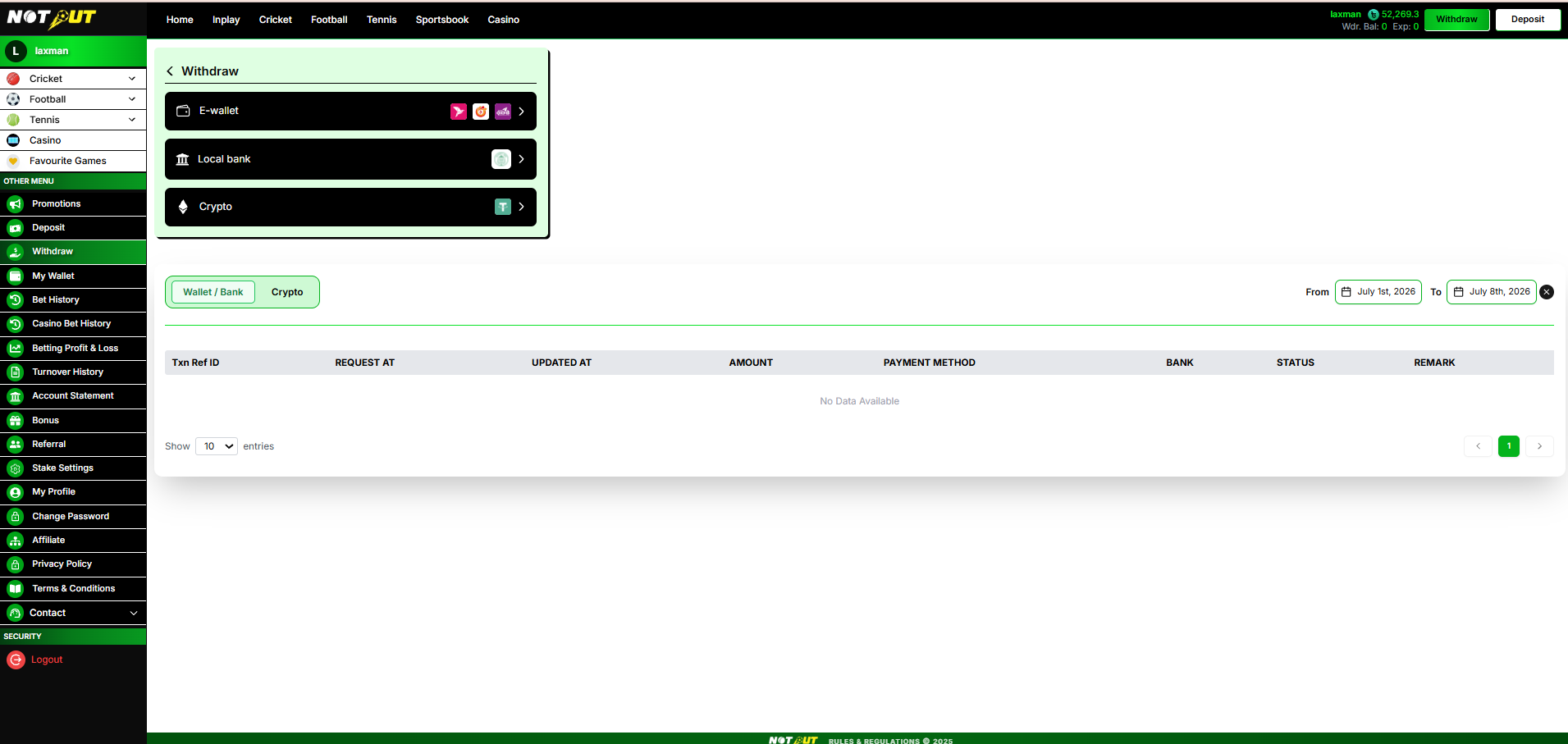
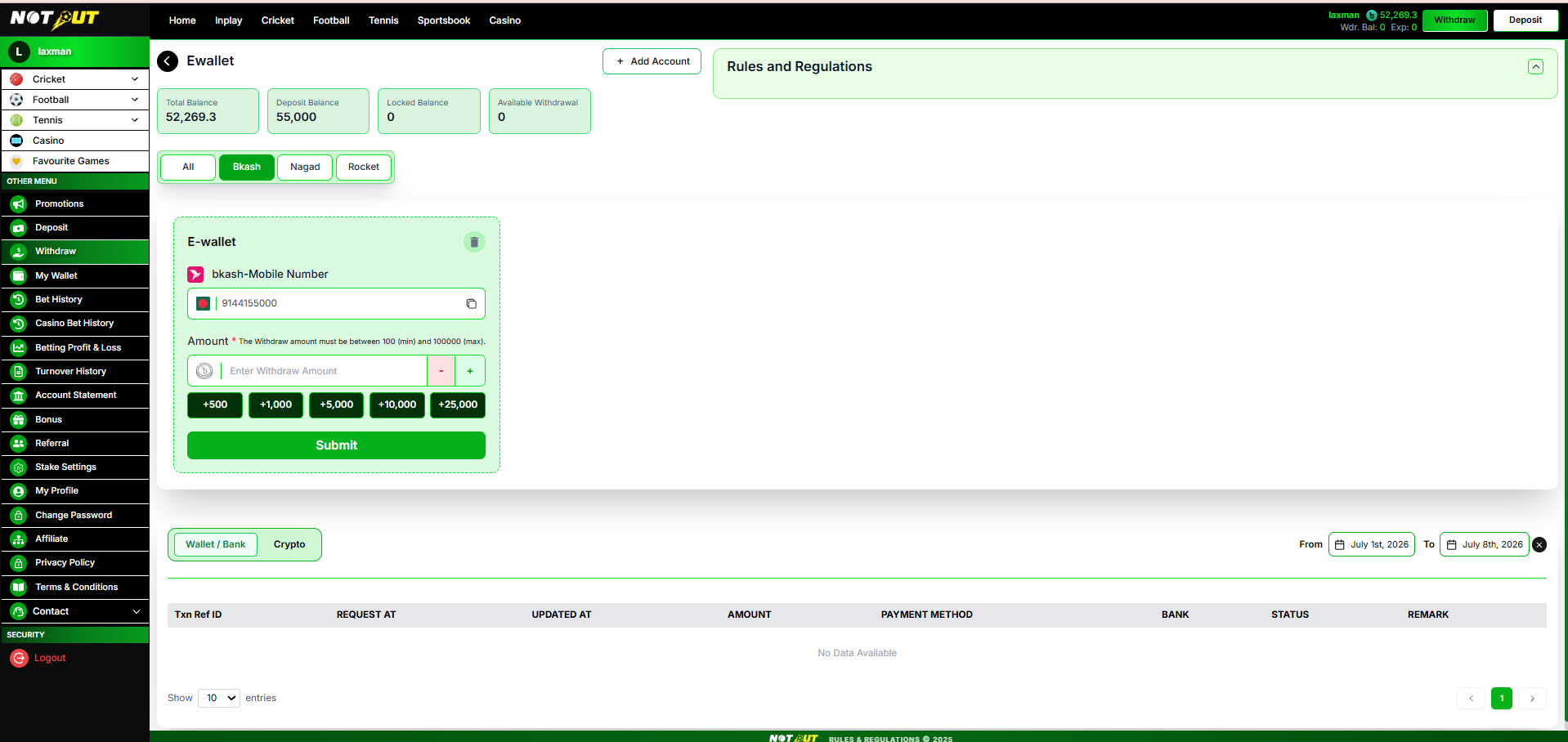
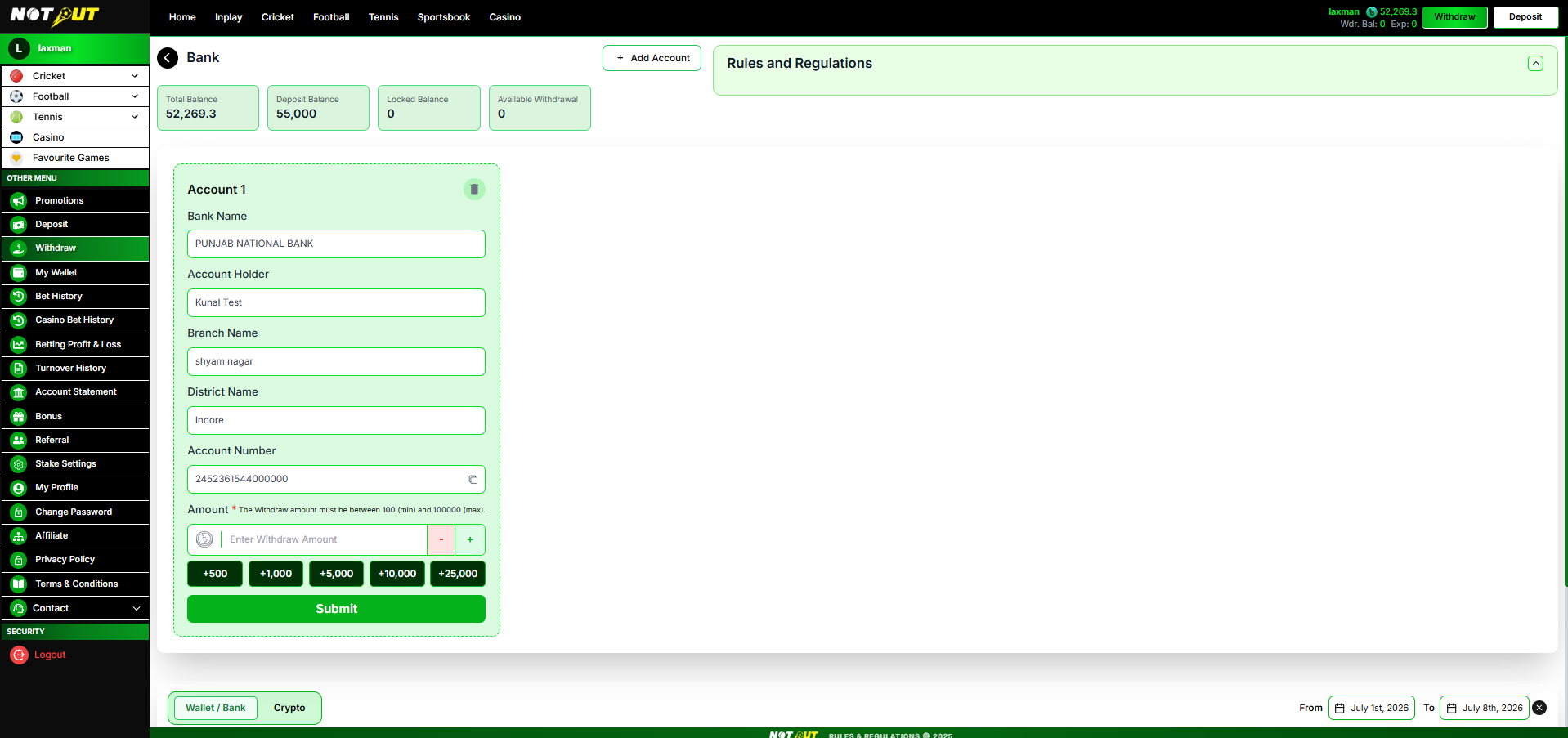
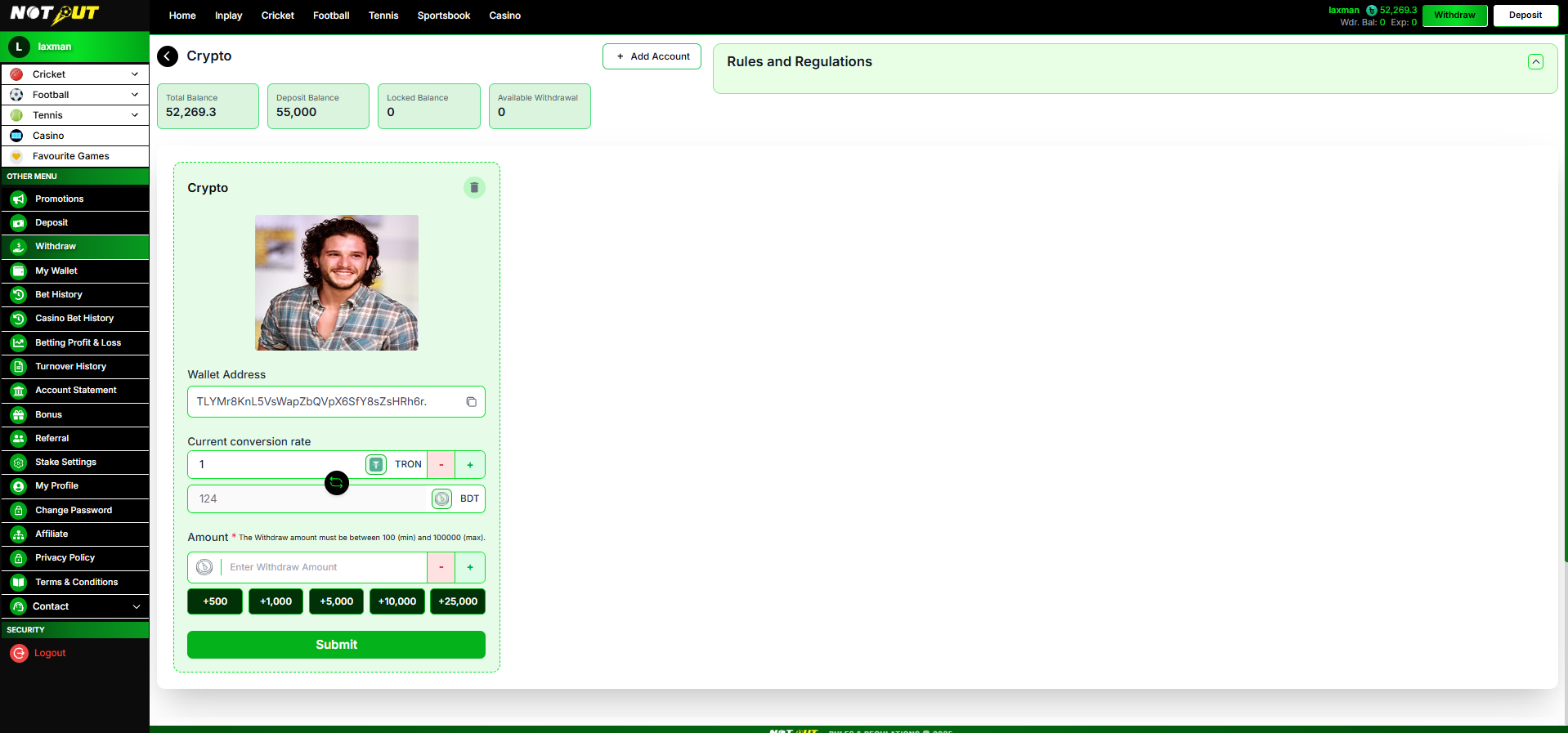
Features included
| Payment Method Categories (E-wallet / Local Bank / Crypto) | Included |
| Balance Summary (Total / Deposit / Locked / Available) | Included |
| Add Account (E-wallet / Bank / Crypto) | Included |
| Provider Filter Tabs (All / bKash / Nagad / Rocket) | Included |
| Saved Account Cards — Copy & Delete | Included |
| Upload Crypto Wallet QR | Optional |
| Amount with Min / Max Limits | Included |
| Quick-Add Buttons & Stepper | Included |
| Crypto Amount Conversion (TRON / USDT ↔ BDT) | Included |
| Rules & Regulations Panel | Included |
| Withdrawal Request Submission | Included |
| Transaction History & Filters | Included |
Withdrawal flow
8.1 Balance Summary
| Field | Description |
|---|---|
| Total Balance | Full wallet balance |
| Deposit Balance | Funds credited from deposits |
| Locked Balance | Amount locked (open bets / unmet turnover requirement) |
| Available Withdrawal | Amount actually withdrawable now |
8.2 Add & Manage Payout Accounts
The user adds their own destination accounts via the Add Account modal. Saved accounts appear as cards with a copy action (number / address) and a delete (trash) action. For e-wallet, provider filter tabs (All / bKash / Nagad / Rocket) filter the saved accounts.
Add Account — E-wallet
| Field | Description | Type |
|---|---|---|
| Provider | bKash / Nagad / Rocket | Mandatory |
| Mobile Number | Payout mobile number (+880) | Mandatory |
Add Account — Local Bank
| Field | Description | Type |
|---|---|---|
| Bank Name | Name of the bank | Mandatory |
| Branch Name | Branch of the account | Mandatory |
| District | District of the branch | Mandatory |
| Account Holder | Name on the account | Mandatory |
| Account Number | Bank account number | Mandatory |
Add Account — Crypto
| Field | Description | Type |
|---|---|---|
| Crypto Wallet QR | Upload wallet QR code | Optional |
| Wallet Address | Destination wallet address | Mandatory |
Until an account is added, the form area shows "No account has been added yet."
8.3 Amount & Crypto Conversion
No fixed minimum / maximum withdrawal amount is enforced at this time — the only limit is the user's Available Withdrawal balance. Controls: stepper (− / +) plus quick-add buttons +500 +1,000 +5,000 +10,000 +25,000.
For crypto, the card displays the current conversion rate (e.g. 1 TRON = 124 BDT) with the amount shown in both the crypto unit and BDT.
8.4 Rules & Regulations Panel
Displayed alongside the form. Content is fixed and method-specific — it is not editable from the Admin Panel. Communicates withdrawal conditions, processing time, and any turnover requirement before funds become withdrawable.
8.5 Transaction History
A history table lists all withdrawal requests, with a Wallet / Bank vs Crypto toggle, a From–To date range filter, and "Show N entries" pagination. Empty state: "No Data Available". The destination column changes with the method — Bank for wallet/bank, Wallet Address for crypto.
| Column | Description |
|---|---|
| Txn Ref ID | System-generated request reference |
| Request At | Timestamp the request was submitted |
| Updated At | Timestamp of the last status change |
| Amount | Requested withdrawal amount |
| Payment Method | E-wallet provider / bank / crypto |
| Bank / Wallet Address | Destination account (bank for wallet/bank, wallet address for crypto) |
| Status | Pending / Approved / Rejected |
| Remark | Banker note (e.g. rejection reason) |
Request statuses
Pending awaiting banker review Approved paid out; balance debited Rejected not paid; funds retained, see remark
8.6 Business Rules
- Users add and manage their own payout accounts; saved accounts can be deleted.
- Withdrawal amount must be within the Available Withdrawal balance; no fixed minimum / maximum is enforced at this time, and this is not admin-configurable.
- Available Withdrawal reflects funds eligible after locked balance and any turnover requirement.
- The Rules & Regulations text is fixed and method-specific — it is not admin-configurable.
- Crypto withdrawals display a live conversion at the admin-configured rate.
- Every submission creates a request in Pending status routed to the banker; it is never auto-paid.
- On approval the funds are paid out and the balance is debited; on rejection the funds are retained and the remark explains the reason.
- Demo users cannot submit withdrawals.
Not included
Auto Payout / Instant Withdrawal Automated Payout Gateway Card Refunds Auto Account Verification
Exclusions above reflect the manual flow shown; adjust if any should move into scope.
8.7 Acceptance Criteria
| No. | Requirement |
|---|---|
| 1 | User can open Withdraw from the header button and sidebar. |
| 2 | E-wallet, Local Bank and Crypto categories are displayed. |
| 3 | Balance summary shows Total, Deposit, Locked and Available Withdrawal correctly. |
| 4 | User can add an e-wallet payout account (provider + mobile number). |
| 5 | User can add a bank account with all required fields. |
| 6 | User can add a crypto wallet (address + optional QR). |
| 7 | Saved accounts display with a copy action and can be deleted. |
| 8 | Provider filter tabs filter saved e-wallet accounts. |
| 9 | Amount cannot exceed Available Withdrawal balance (no fixed min/max enforced at this time). |
| 10 | Quick-add buttons and the stepper update the amount correctly. |
| 11 | Crypto conversion (crypto → BDT) displays correctly. |
| 12 | When no account exists, "No account has been added yet." is shown. |
| 13 | Submitting creates a Pending withdrawal request routed to the banker. |
| 14 | Transaction history shows correct columns (Bank / Wallet Address), status and remark. |
| 15 | Date range and Wallet/Bank–Crypto filters work. |
| 16 | Demo users cannot submit withdrawals. |
Module 09
Bet History
›
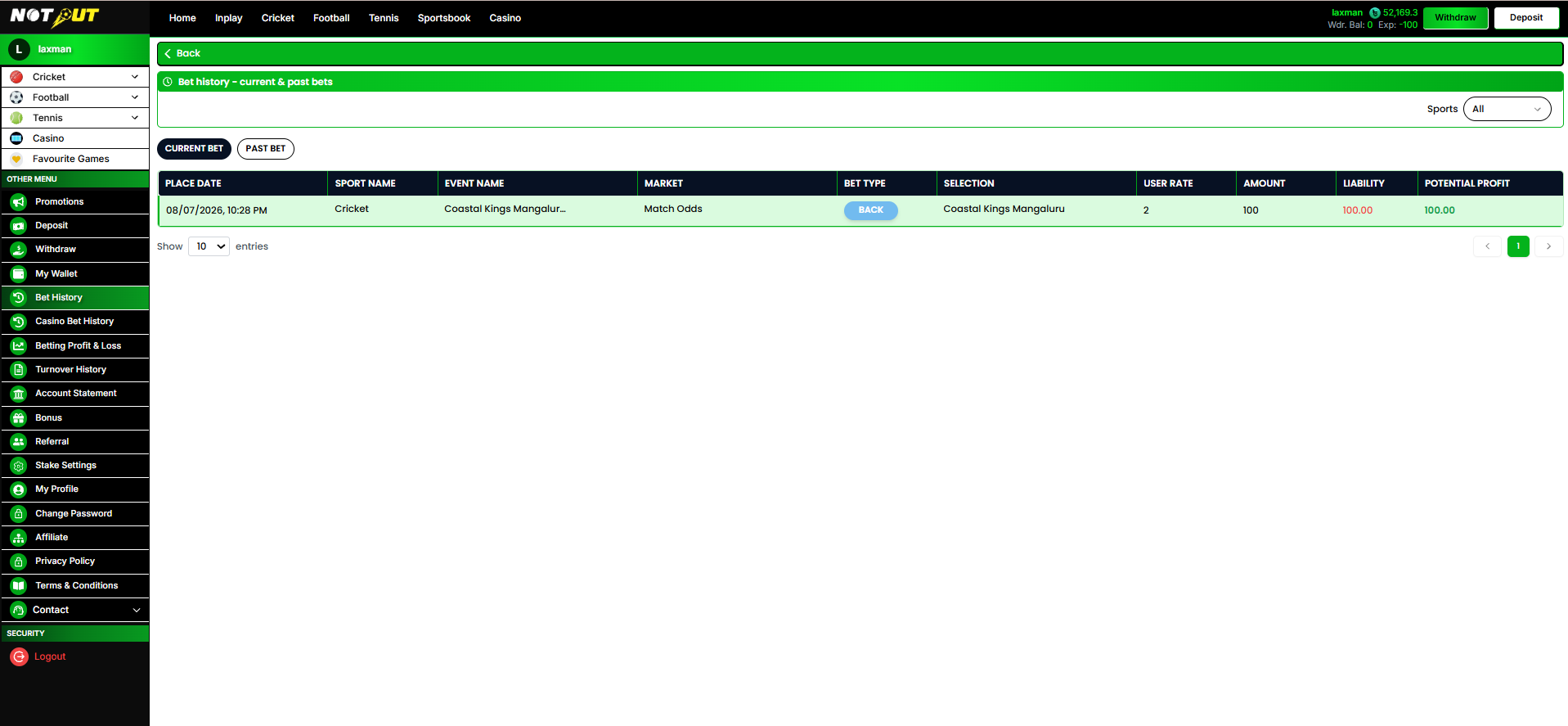
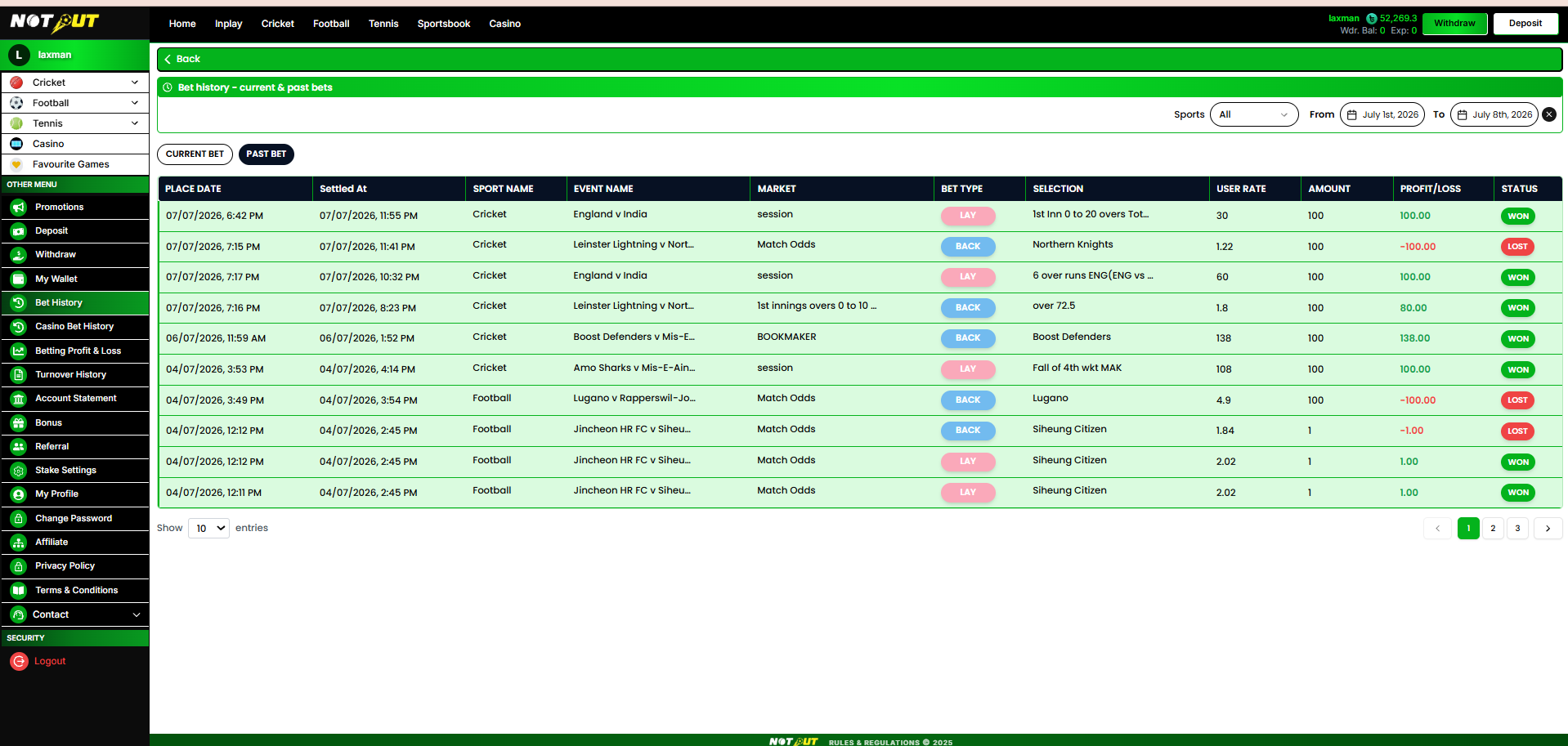
Bet History lists the user's sports bets across two tabs — Current Bet (unsettled / open) and Past Bet (settled). Records are filterable by sport and by date range.
Reference screens
Filters
Sports dropdown (All / Cricket / Football / Tennis) · From–To date range · "Show N entries" pagination.
Current Bet — columns (unsettled)
| Column | Description |
|---|---|
| Place Date | When the bet was placed |
| Sport Name | Cricket / Football / Tennis |
| Event Name | Match / event |
| Market | Match Odds / Session / Bookmaker etc. |
| Bet Type | Back / Lay |
| Selection | Runner / outcome backed |
| User Rate | Odds taken |
| Amount | Stake |
| Liability | Amount at risk |
| Potential Profit | Profit if the bet wins |
Past Bet — columns (settled)
| Column | Description |
|---|---|
| Place Date | When the bet was placed |
| Settled At | When the bet was settled |
| Sport Name · Event Name · Market | Bet context |
| Bet Type · Selection · User Rate · Amount | Bet details |
| Profit / Loss | Realised P/L |
| Status | Won / Lost / Rollback |
Business rules
- Current Bet shows only unsettled bets; Past Bet shows only settled bets.
- Sport and date-range filters apply to both tabs.
- Values are read-only; this is a reporting view.
Acceptance criteria
| No. | Requirement |
|---|---|
| 1 | Current Bet tab lists unsettled bets with liability and potential profit. |
| 2 | Past Bet tab lists settled bets with profit/loss and Won/Lost status. |
| 3 | Sports filter (All/Cricket/Football/Tennis) works on both tabs. |
| 4 | Date range filter works. |
| 5 | Pagination and entries-per-page work. |
Module 10
Casino Bet History
›
Lists the user's casino game bets, one row per game round, filterable by date range.
Reference screen
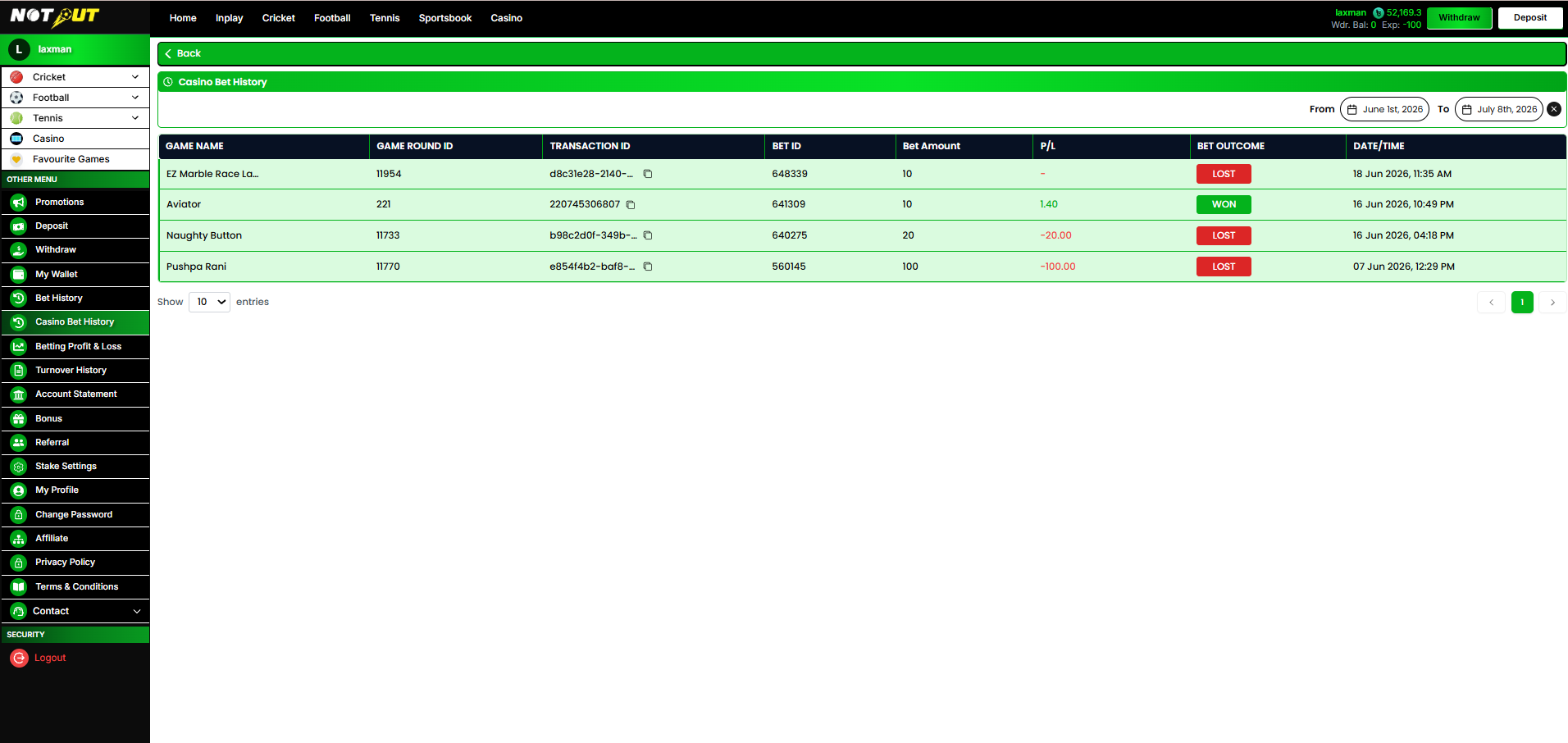
Columns
| Column | Description |
|---|---|
| Game Name | Casino game played |
| Game Round ID | Provider round identifier |
| Transaction ID | Unique transaction reference (with copy) |
| Bet ID | Internal bet identifier |
| Bet Amount | Stake for the round |
| P/L | Profit / loss (— for pending) |
| Bet Outcome | Won / Lost / Rollback |
| Date / Time | When the round was played |
Business rules
- Data is supplied by the integrated casino provider(s); read-only.
- Filterable by date range with entries-per-page pagination.
- Transaction ID is copyable for support reference.
Acceptance criteria
| No. | Requirement |
|---|---|
| 1 | All casino rounds are listed with the correct columns. |
| 2 | Won/Lost outcome and P/L display correctly. |
| 3 | Transaction ID can be copied. |
| 4 | Date range filter and pagination work. |
Module 11
Betting Profit & Loss (Market-wise)
›
A profit & loss report summarised per market for sports (not per event, not per individual bet), and per game round for casino. A Total P&L is shown for the selected date range, plus a per-tab P&L subtotal.
Reference screen
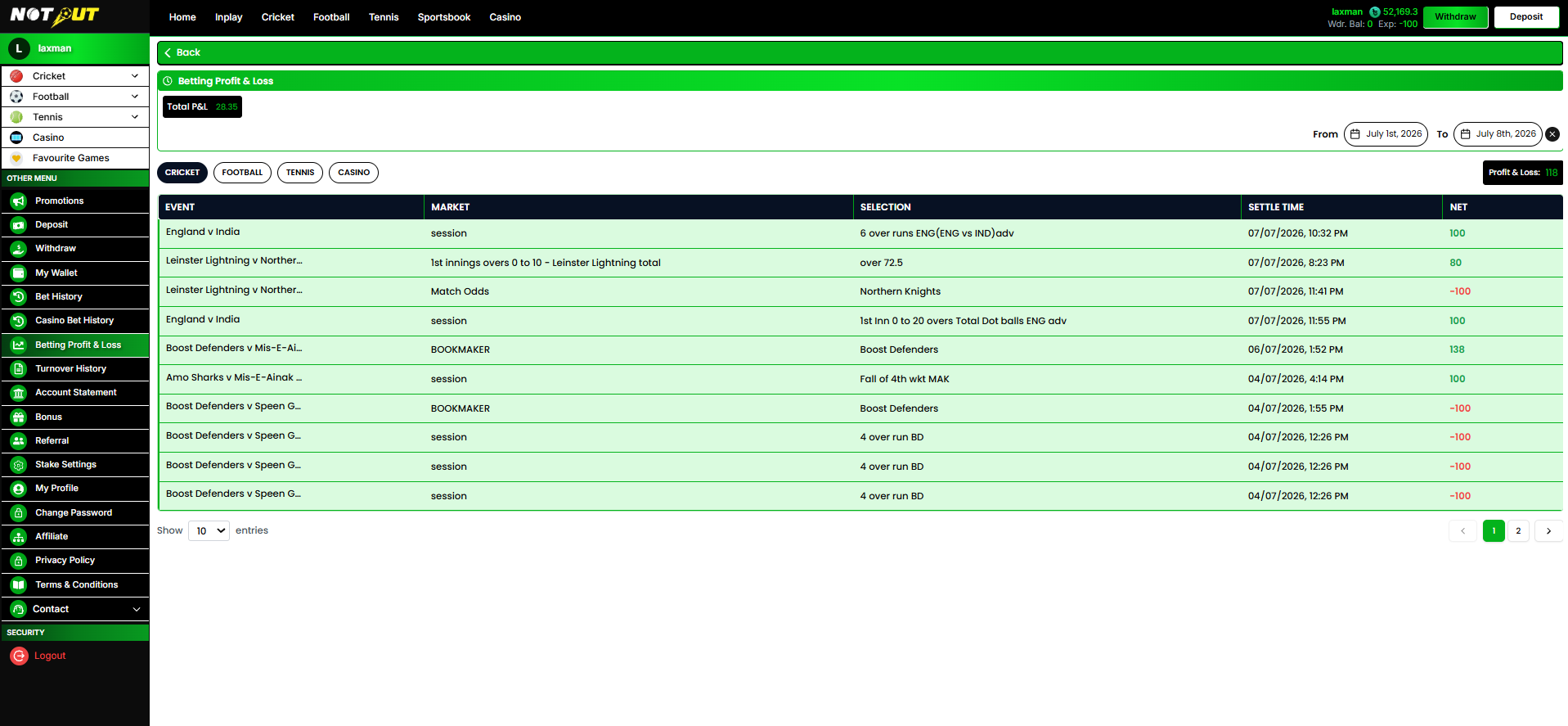
Header & filters
Total P&L badge for the range · From–To date range · sport tabs: Cricket · Football · Tennis · Casino · per-tab Profit & Loss subtotal.
Sports tab — columns (market-wise)
| Column | Description |
|---|---|
| Event | Match / event name |
| Market | Match Odds / Bookmaker / Fancy / Premium |
| Sport | Cricket / Football / Tennis |
| Net Profit / Loss | Aggregated P/L across all bets on that market |
| Date | Event date |
Casino tab — columns
| Column | Description |
|---|---|
| Game | Casino game |
| Round ID | Provider round identifier |
| Status | Won / Lost / Rollback |
| Bet Amount · Win Amount | Stake and payout |
| Date | When the round was played |
Business rules
- Sports P&L is aggregated per market (not per event, not per bet); casino P&L is listed per round.
- Total P&L and the per-tab subtotal reflect the selected date range and tab.
- Positive P/L is shown in green, negative in red.
Acceptance criteria
| No. | Requirement |
|---|---|
| 1 | Sports tabs show market-wise net P&L, one row per market. |
| 2 | Casino tab shows per-round P&L. |
| 3 | Total P&L and per-tab subtotal calculate correctly for the range. |
| 4 | Date range filter and tab switching work. |
Module 12
Account Statement
›
A complete wallet ledger of every credit and debit, with a running balance. Filterable by transaction type, context, and date range.
Reference screen
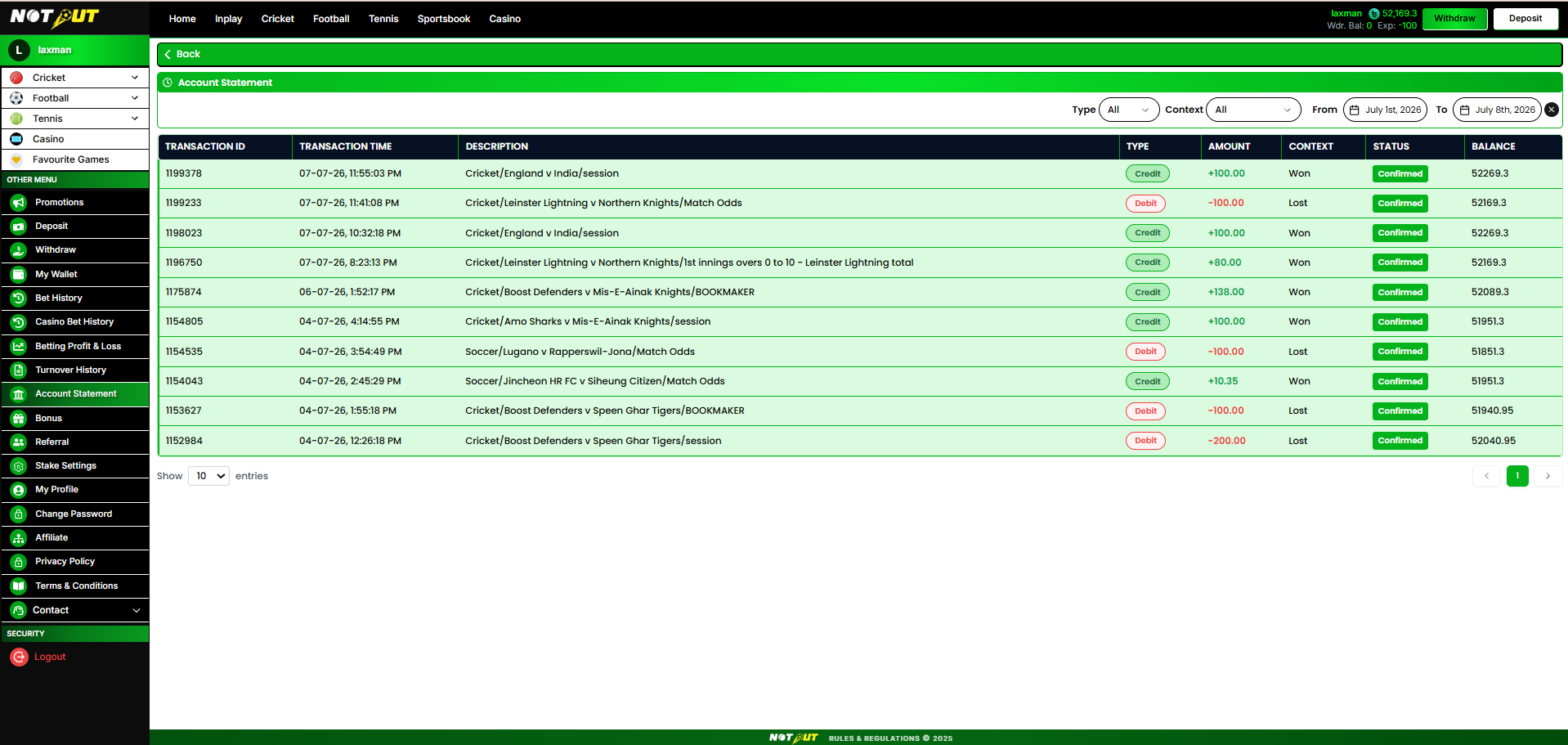
Filters
| Filter | Options |
|---|---|
| Type | All · Debit · Credit |
| Context | All · Won · Lost · Bonus · Rollback · Deposit · Withdrawal |
| Date range | From – To |
Columns
| Column | Description |
|---|---|
| Transaction ID | Ledger entry reference |
| Transaction Time | Timestamp |
| Description | Sport / event / market or transaction detail |
| Type | Credit / Debit |
| Amount | Signed amount (+ credit / − debit) |
| Context | Won / Lost / Bonus / Rollback / Deposit / Withdrawal |
| Status | Confirmed |
| Balance | Running wallet balance after the entry |
Business rules
- Every wallet movement produces a ledger entry; read-only.
- Running balance reflects the balance after each transaction.
- Type and Context filters combine with the date range.
Acceptance criteria
| No. | Requirement |
|---|---|
| 1 | All wallet movements are listed with correct type, amount and running balance. |
| 2 | Type filter (All/Debit/Credit) works. |
| 3 | Context filter (Won/Lost/Bonus/Rollback/Deposit/Withdrawal) works. |
| 4 | Date range filter and pagination work. |
Module 13
Promotions
›
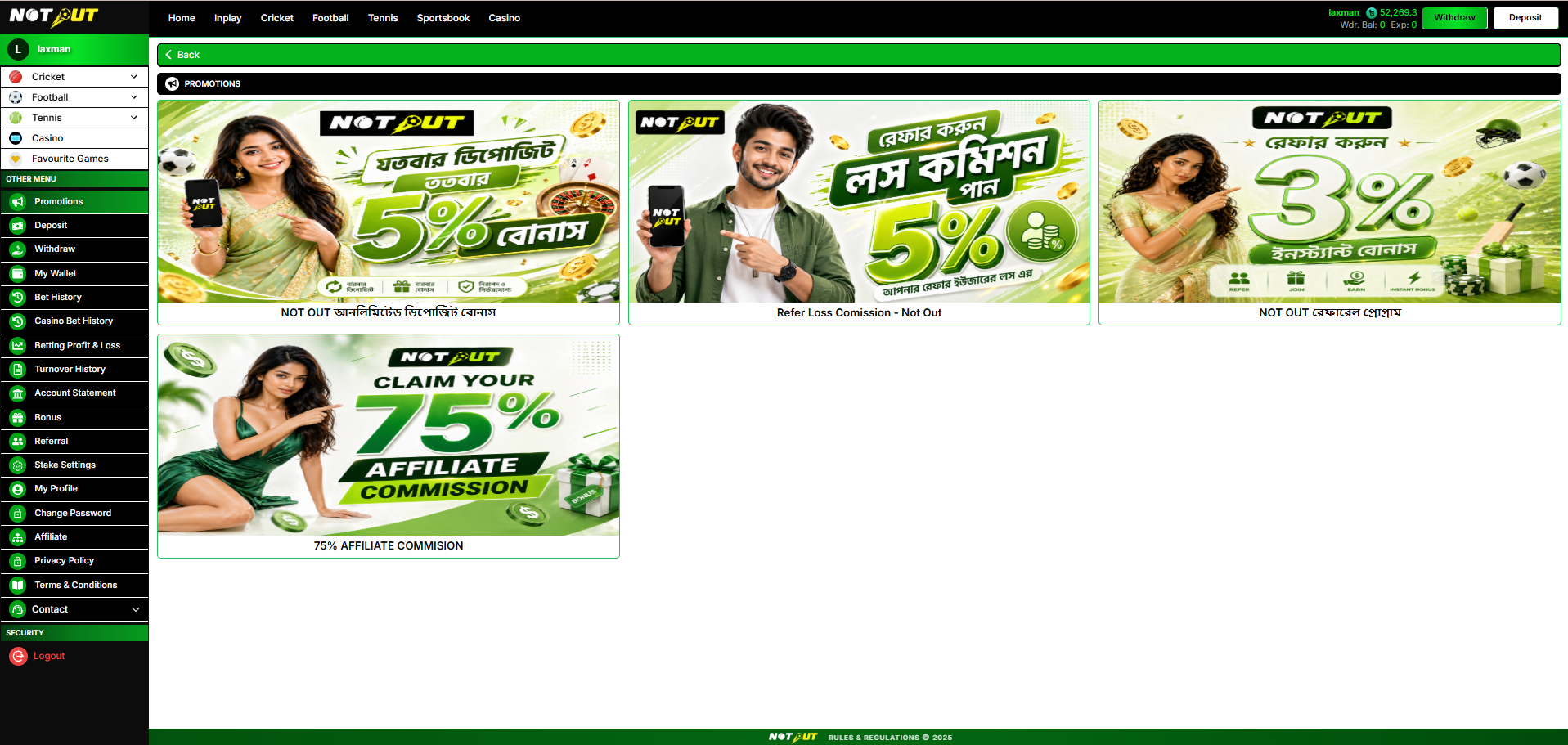
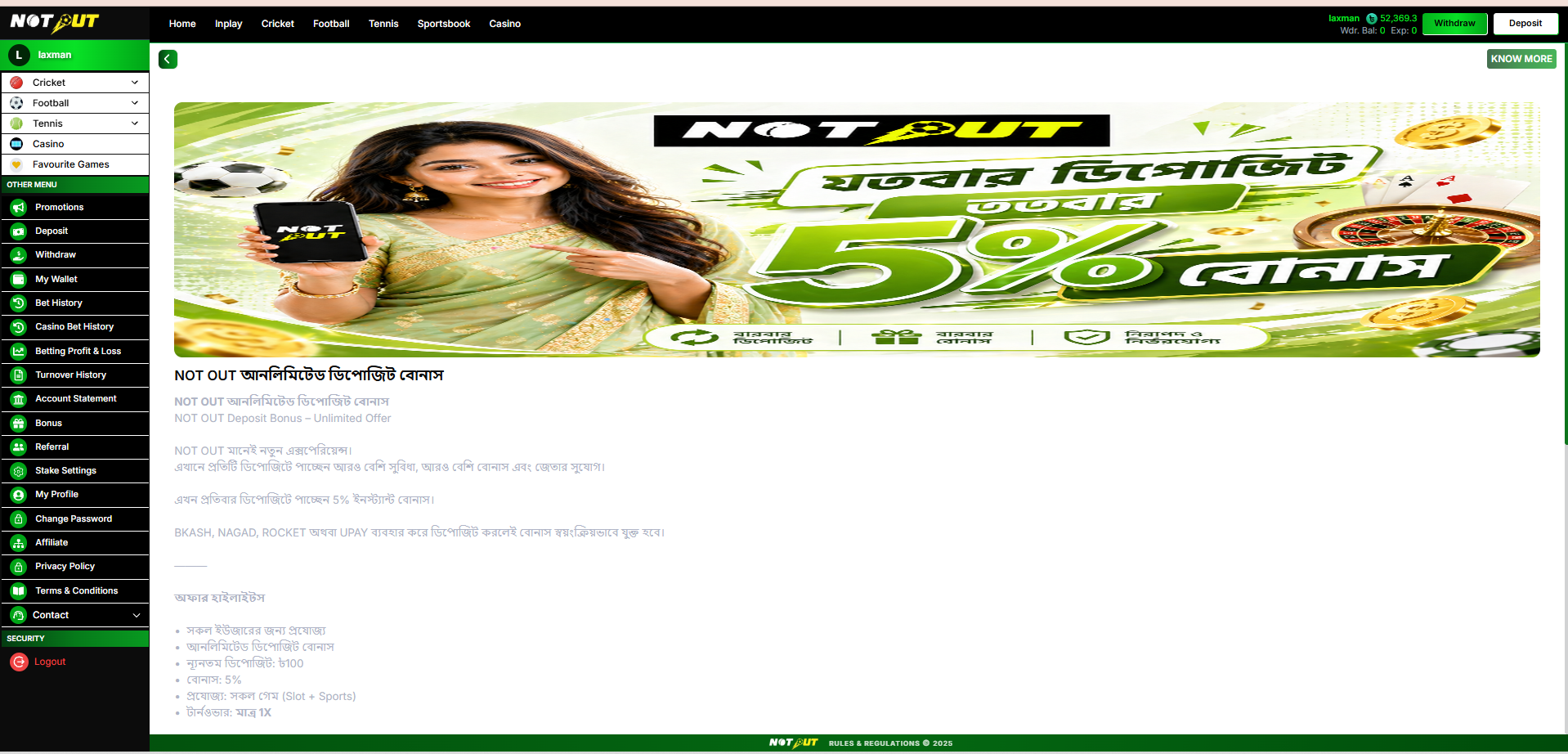
The Promotions page lists all active offers and bonus campaigns configured by the admin. Each promotion is displayed as a card with its banner, title, and short description.
Reference screens
13.1 Features
| Feature | Description |
|---|---|
| Promotion cards | Banner image, title and short description per promotion |
| Details view | Selecting a card opens the full offer details, terms and eligibility |
| Admin-managed | Promotions are created, activated and sequenced from the Admin Panel |
| Linked actions | A promotion may deep-link to the related page (e.g. Deposit, Referral, Casino) |
13.2 Business Rules
- Only active promotions are displayed; expired or disabled offers are hidden automatically.
- Display order follows the sequence configured in the Admin Panel.
- Bonus-linked promotions (Joining, Referral, Loss-Back, Refill) follow the rules defined in the Bonus module (Module 18).
- Demo users can view promotions but cannot claim offers.
13.3 Acceptance Criteria
| No. | Requirement |
|---|---|
| 1 | Promotions page lists all active promotions with banner, title and description. |
| 2 | Selecting a promotion shows its full details and terms. |
| 3 | Expired / disabled promotions are not shown. |
| 4 | Display sequence matches admin configuration. |
Module 14
Stake Settings
›
Lets the user configure the quick-stake preset buttons used in the bet slip. Each of the nine presets has an editable Button Label and an Input Value (with − / + stepper). Changes are saved with the Save button.
Reference screen
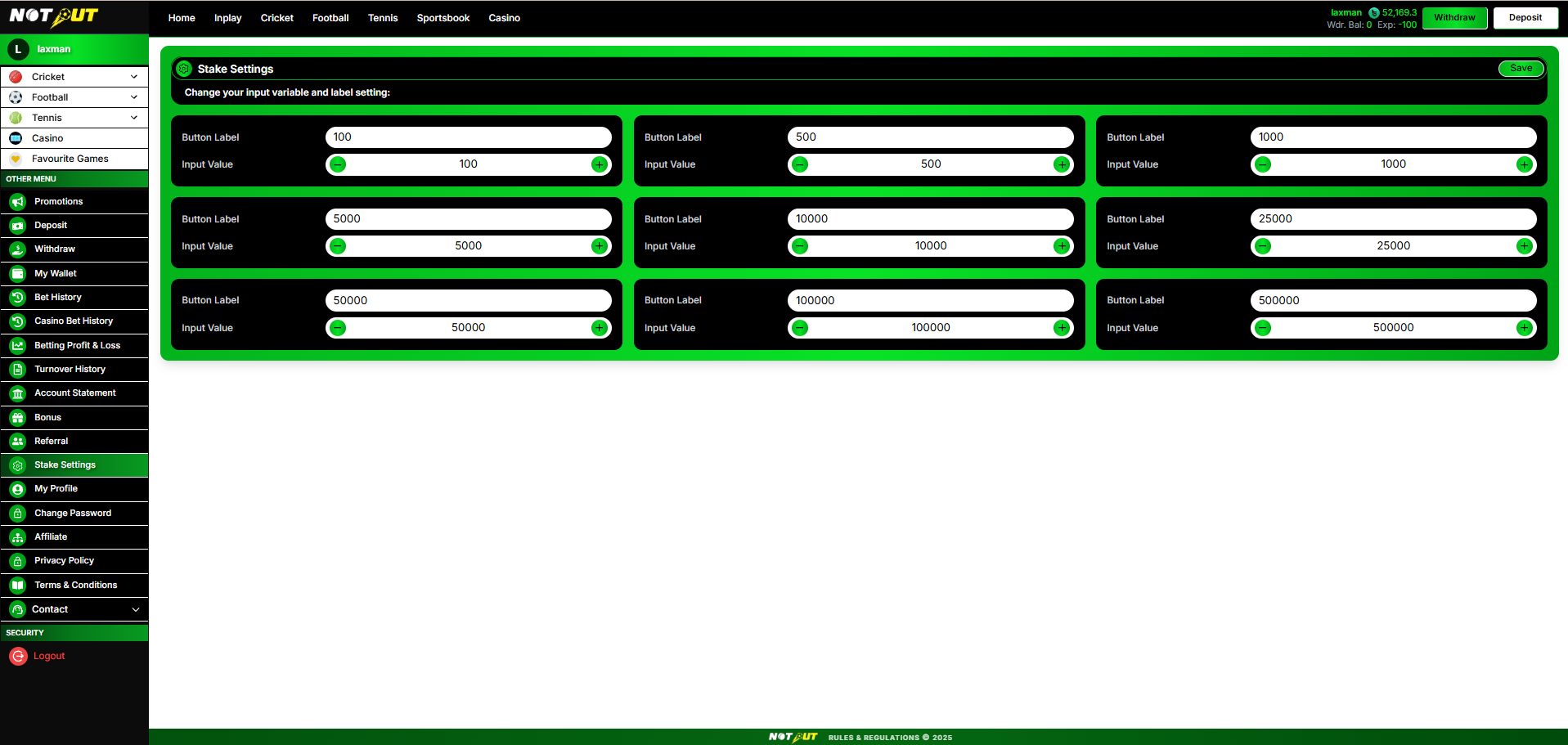
Behaviour
| Element | Description |
|---|---|
| Preset slots | 9 configurable stake presets |
| Button Label | Text shown on the bet-slip quick-stake button |
| Input Value | Numeric stake added when tapped (− / + stepper) |
| Save | Persists the presets to the user's account |
Default presets seen: 100 · 500 · 1,000 · 5,000 · 10,000 · 25,000 · 50,000 · 100,000 · 500,000.
Business rules
- Saved presets replace the default quick-stake buttons in the bet slip.
- Values should be positive numbers; the label may differ from the value.
- Settings persist per user until changed again.
Acceptance criteria
| No. | Requirement |
|---|---|
| 1 | All nine preset labels and values are editable. |
| 2 | Stepper adjusts the input value correctly. |
| 3 | Save persists the presets and they appear in the bet slip. |
Module 15
My Profile
›
Displays the user's account summary and profile information, with an Edit Profile action.
Reference screen
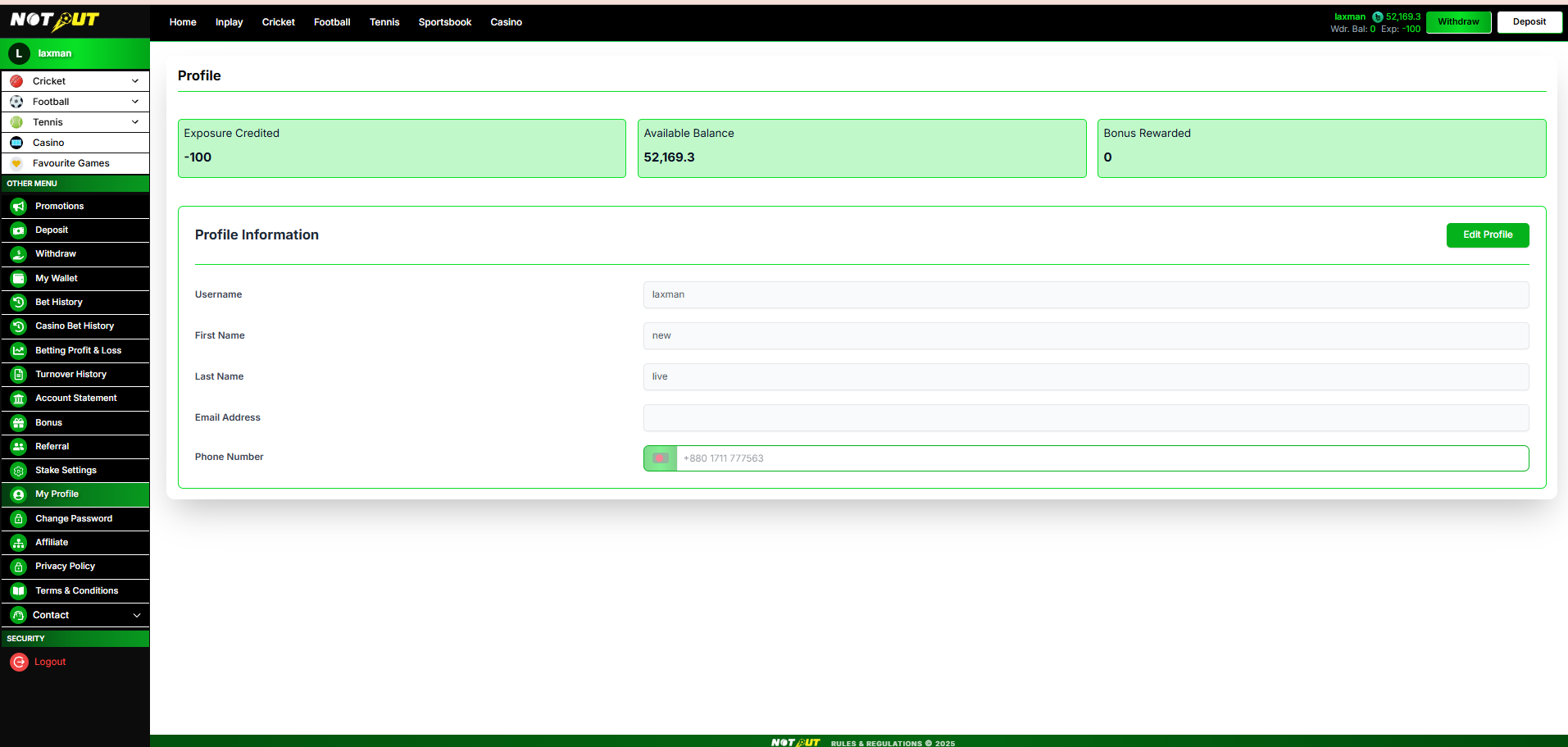
Summary cards
Exposure Credited · Available Balance · Bonus Rewarded.
Profile information
| Field | Detail |
|---|---|
| Username | Read-only login ID |
| First Name | Editable |
| Last Name | Editable |
| Email Address | Editable (optional) |
| Phone Number | Registered mobile (+880) |
Business rules
- Username is not editable.
- Edit Profile enables editing of the permitted fields and saves changes.
- Summary cards reflect live account values.
- Demo users cannot update the profile.
Acceptance criteria
| No. | Requirement |
|---|---|
| 1 | Summary cards show Exposure Credited, Available Balance and Bonus Rewarded. |
| 2 | Profile fields display correctly; username is read-only. |
| 3 | Edit Profile saves permitted changes. |
Module 16
My Wallet & Deposit Turnover
›
The central wallet view. It shows all balance types, the status of each deposit's turnover requirement, and an explanation of how turnover is calculated and prioritised. This is the anchor for the whole bonus / turnover system.
Reference screen
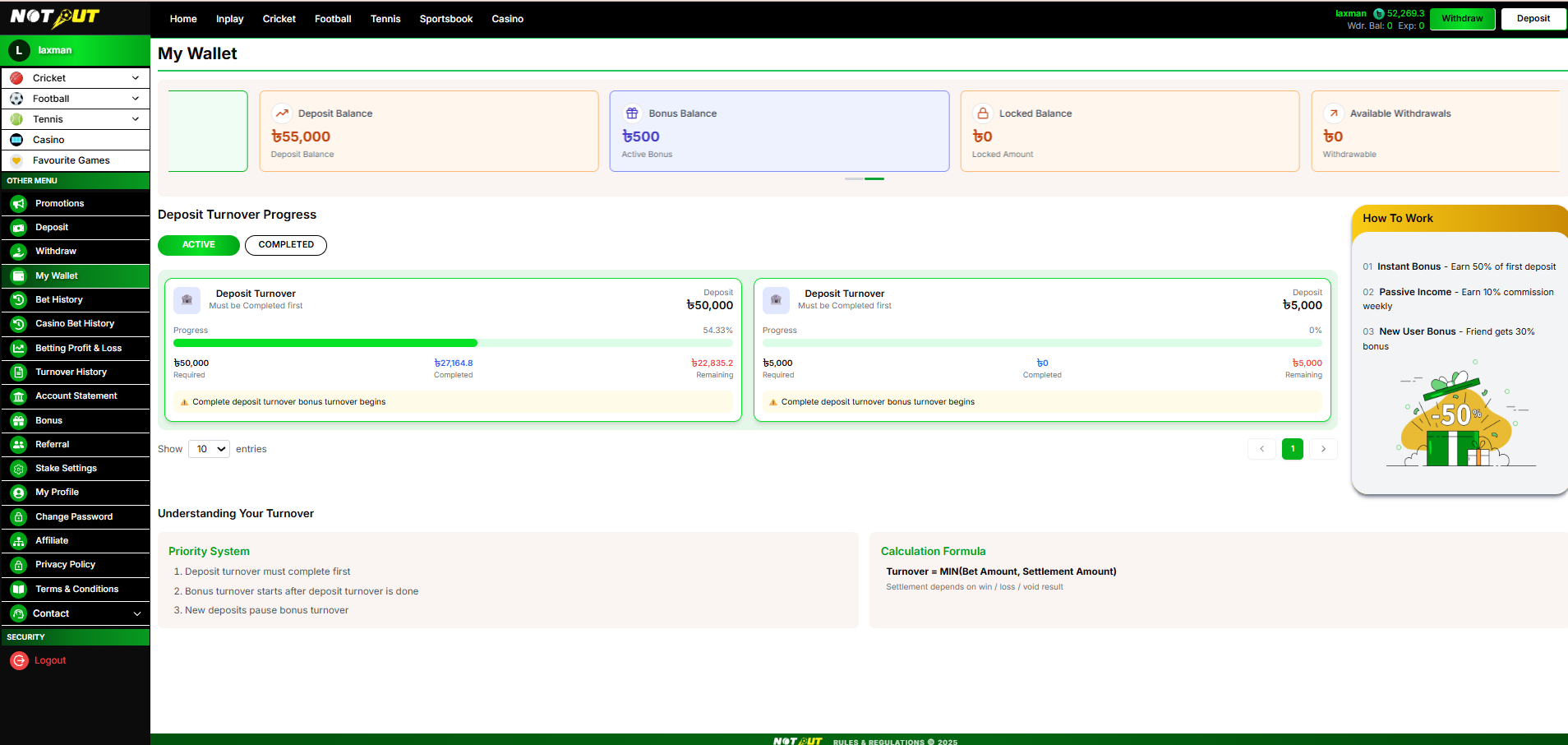
Balance summary cards
| Card | Meaning |
|---|---|
| Total Balance | Full wallet balance across all sources (deposit + bonus + winnings) |
| Deposit Balance | Funds deposited by the user (usable for betting) |
| Bonus Balance | Active bonus amount held in the Bonus Wallet, not yet released |
| Locked Balance | Amount locked (open bets / turnover not yet met) — not withdrawable |
| Available Withdrawals | Amount actually withdrawable now |
Deposit Turnover Progress
Toggle between Active and Completed. Each deposit shows a progress card until its turnover requirement is met:
Each card shows Required / Completed / Remaining turnover and a percentage progress bar. A notice reads "Complete deposit turnover — bonus turnover begins."
Understanding Your Turnover
Priority system
- Deposit turnover must complete first.
- Bonus turnover starts after deposit turnover is done.
- New deposits pause bonus turnover.
Calculation formula
Business rules
- Balance cards reflect live values and update after every transaction and settlement.
- Deposit turnover is always cleared before any bonus turnover progresses.
- A new deposit pauses in-progress bonus turnover until the new deposit turnover is met.
- Only the Available Withdrawals amount can be withdrawn.
Acceptance criteria
| No. | Requirement |
|---|---|
| 1 | All five balance cards (incl. Total Balance) display correct live values. |
| 2 | Active / Completed toggle filters the deposit turnover cards. |
| 3 | Each card shows Required, Completed, Remaining and progress %. |
| 4 | Priority system and calculation formula are displayed. |
| 5 | Turnover progresses per MIN(Bet, Settlement) and priority rules. |
Module 17
Turnover History
›
A per-bet log of how much effective turnover each settled bet contributed. This is what feeds the deposit / bonus turnover progress. Two tabs — Sports and Casino — filterable by date range.
Reference screens
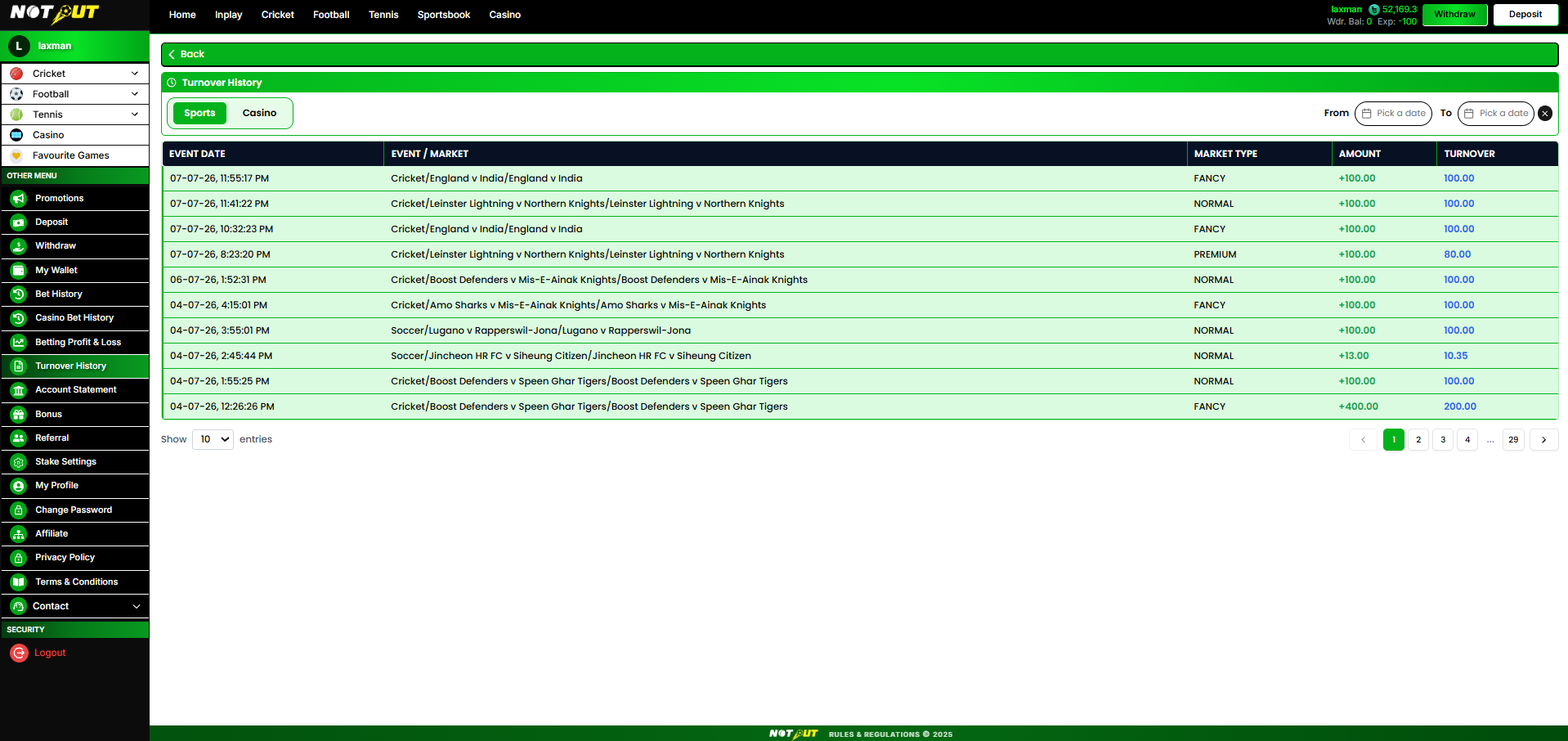
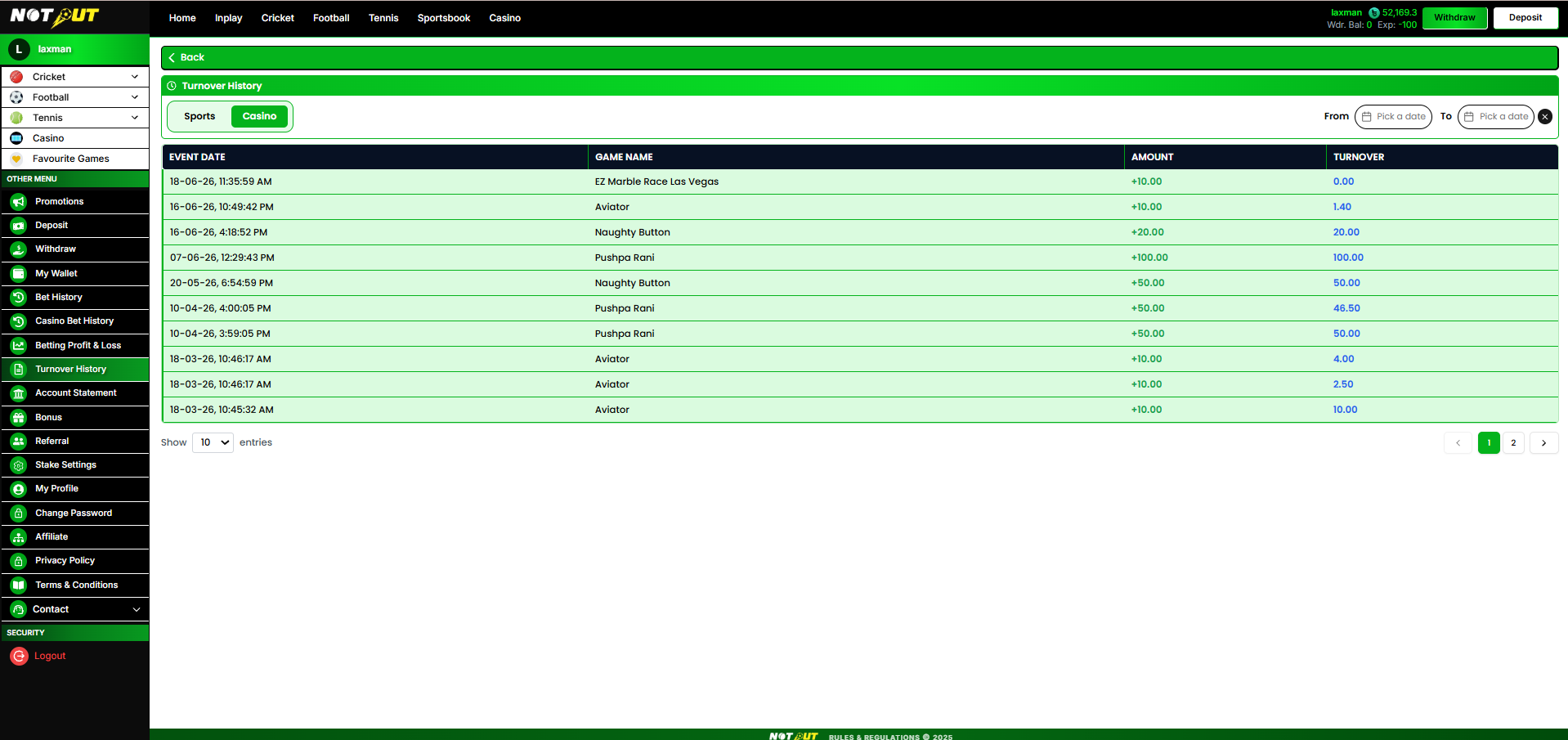
Sports tab — columns
| Column | Description |
|---|---|
| Event Date | Date & time of the bet |
| Event / Market | Sport / event / market (e.g. Cricket / England v India) |
| Market Type | Normal · Fancy · Premium |
| Amount | Bet / settlement amount |
| Turnover | Effective turnover credited |
Casino tab — columns
| Column | Description |
|---|---|
| Event Date | Date & time of the round |
| Game Name | Casino game played |
| Amount | Real-money bet amount |
| Turnover | Effective turnover credited |
Effective Turnover calculation
| Result | Rule | Example |
|---|---|---|
| Win < bet | Effective turnover = win amount | Bet 100, win 80 → 80 |
| Win > bet | Effective turnover = bet amount | Bet 100, win 130 → 100 |
| Loss < bet | Effective turnover = loss amount | Bet 100, lose 40 → 40 |
| Loss > bet | Effective turnover = bet amount | Bet 100, lose 150 → 100 |
| Draw | Effective turnover = 0 | any → 0 |
| Slot games | Effective turnover = total real-money bets | — |
Business rules
- Only settled bets contribute effective turnover; unsettled bets do not appear.
- Effective turnover follows the table above (equivalent to MIN(bet, settlement) with draws = 0).
- Turnover from this log accrues to deposit turnover first, then bonus turnover.
- Read-only; filterable by Sports / Casino and date range with pagination.
Acceptance criteria
| No. | Requirement |
|---|---|
| 1 | Sports and Casino tabs display the correct columns. |
| 2 | Effective turnover is calculated per the rules table. |
| 3 | Market Type (Normal/Fancy/Premium) shows for sports rows. |
| 4 | Date range filter and pagination work. |
| 5 | Turnover totals reconcile with the wallet turnover progress. |
Module 18
Bonus
›
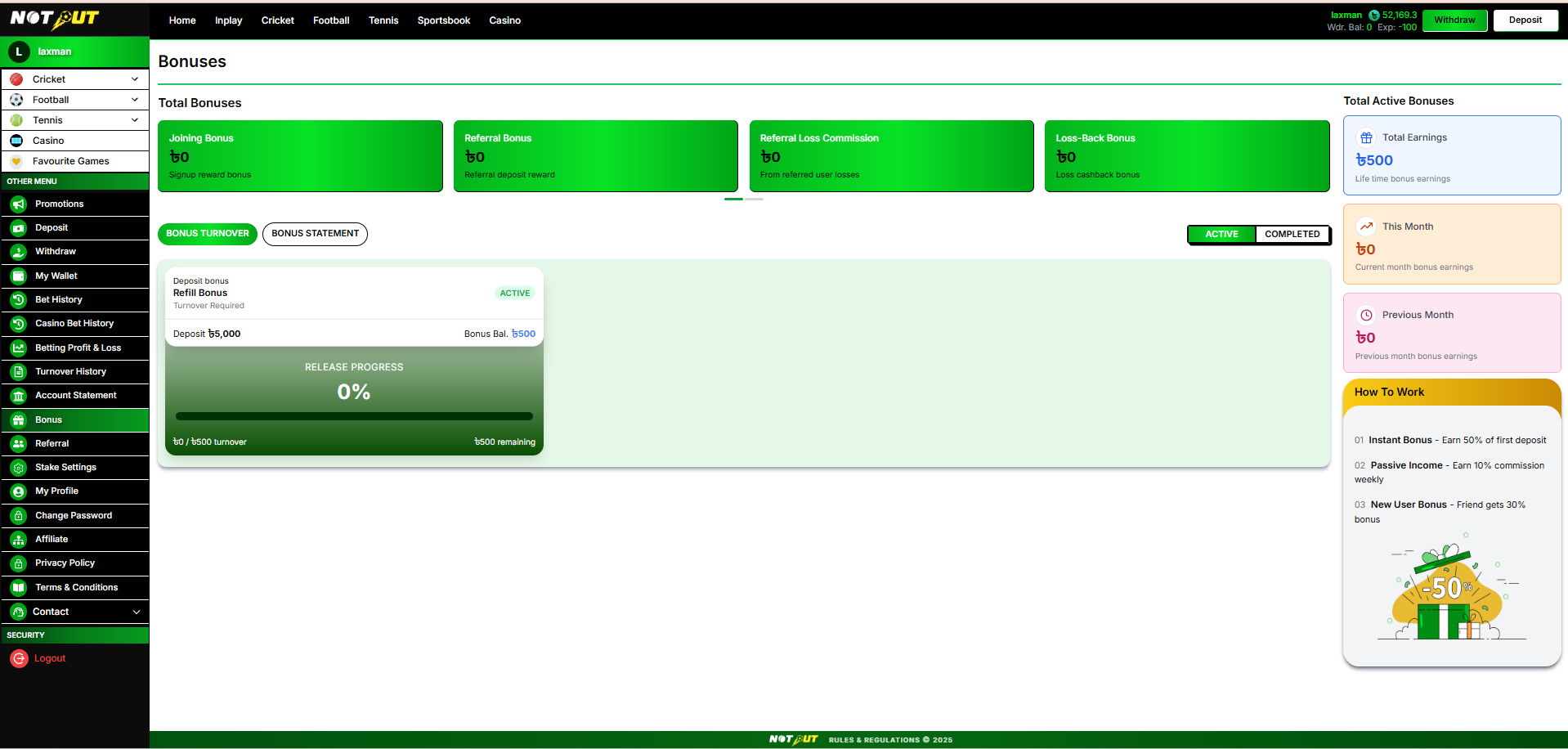
The Bonus module shows all bonuses a user has earned, their turnover-release progress, and a full statement of bonus transactions. NOTOUT supports five bonus types, all configured by admin and credited to the separate Bonus Wallet. A bonus is released to withdrawable balance only after its turnover requirement is met.
Reference screens
18.1 The Five Bonus Types
| Bonus | Trigger | Basis |
|---|---|---|
| Joining Bonus | New user's first deposit | % of first deposit |
| Referral Bonus | Referred user's first deposit | % for referrer + % for new user |
| Referral Loss Commission | Referred users' net losses (passive income) | % of referred losses |
| Loss-Back Bonus | User's own net losses over a period (cashback) | % of net losses |
| Refill / Top-Up Bonus | Subsequent (repeat) deposits | % of recharge amount |
1. Joining Bonus
First-deposit bonus for new users. Admin sets bonus % of deposit, a turnover multiplier (e.g. 2× bonus), minimum deposit, and maximum bonus. Credited to Bonus Wallet; released after turnover.
2. Referral Bonus
Rewards both sides on the referred user's first deposit: a referrer bonus (% of the referred user's first deposit) and a new-user bonus (% of their deposit). Admin sets each %, minimum deposit/payout, maximum bonus, and the release condition — Instant Withdrawal or Turnover.
3. Referral Loss Commission
Passive income: the referrer earns a % of their referred users' net losses. Admin sets commission %, release frequency (Daily / Weekly / Monthly), minimum payout (commission accumulates until this threshold), and max earnings per referrer (0 = unlimited).
4. Loss-Back Bonus
Cashback to retain users: when a user's net losses over a period exceed a loss threshold, they receive a % of net losses back. Admin sets loss threshold, bonus %, release condition (Daily / Weekly / Monthly), and maximum bonus. Credited to Bonus Wallet.
5. Refill / Top-Up Bonus
Bonus on repeat deposits to encourage recharges. Admin sets a default bonus % (or multi-tier — higher deposits earn higher %), minimum recharge to qualify, maximum bonus per refill, and a turnover multiplier.
18.2 Bonus Page Layout
Total Bonuses (summary cards)
A card per bonus type showing the amount earned to date: Joining Bonus · Referral Bonus · Referral Loss Commission · Loss-Back Bonus · Refill Bonus (carousel).
Total Active Bonuses (side panel)
| Metric | Description |
|---|---|
| Total Earnings | Lifetime bonus earnings |
| This Month | Current-month bonus earnings |
| Previous Month | Previous-month bonus earnings |
How To Work (info panel)
- Instant Bonus — earn 50% of first deposit.
- Passive Income — earn 10% commission weekly.
- New User Bonus — friend gets 30% bonus.
Percentages shown are illustrative defaults from the reference build; actual values are admin-configured per bonus.
18.3 Bonus Turnover Tab
Toggle Active / Completed. Each active bonus renders a release-progress card:
Each card shows: bonus category & type, Active/Completed status, source deposit, bonus balance, release progress %, and turnover completed / required / remaining.
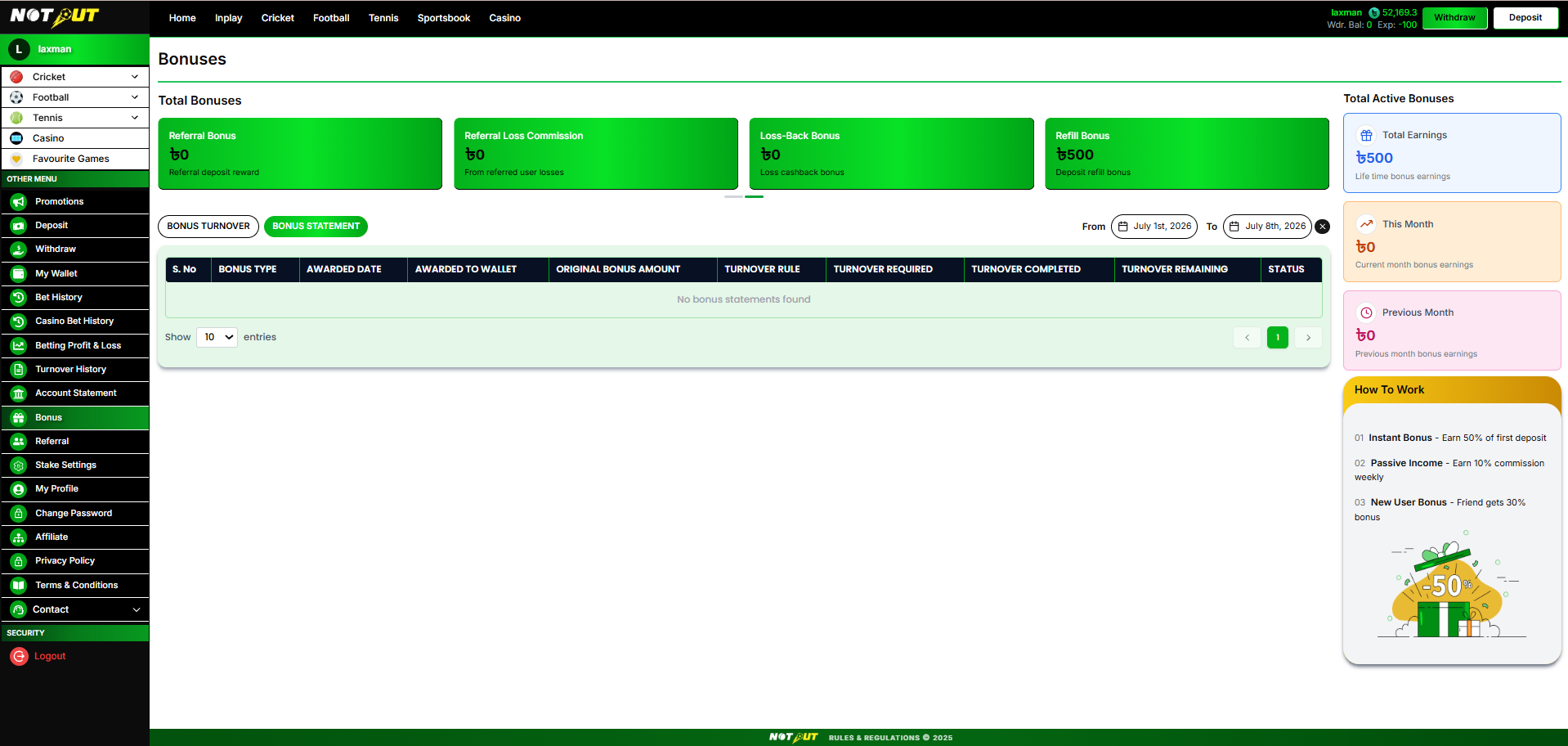
18.4 Bonus Statement Tab
A full ledger of bonus transactions, with a From–To date range filter and pagination.
| Column | Description |
|---|---|
| S. No | Row number |
| Bonus Type | Joining / Referral / Loss Commission / Loss-Back / Refill |
| Awarded Date | When the bonus was granted |
| Awarded To Wallet | Destination wallet (Bonus Wallet) |
| Original Bonus Amount | Bonus granted |
| Turnover Rule | Multiplier / release rule applied |
| Turnover Required | Turnover needed to release |
| Turnover Completed | Turnover achieved so far |
| Turnover Remaining | Turnover still required |
| Status | Active / Completed / Expired |
Empty state: "No bonus statements found."
18.5 Business Rules & Exclusions
- All five bonus types are created and enabled by admin; each is saved inactive until enabled, and each has a validity window (From–To).
- Bonuses credit to the Bonus Wallet and are not withdrawable until their turnover requirement is met.
- Turnover release respects the wallet priority (deposit turnover first, then bonus turnover; new deposits pause bonus turnover).
- Release conditions vary by type: turnover multiplier (Joining, Refill), Instant Withdrawal or Turnover (Referral), or period-based Daily/Weekly/Monthly (Loss Commission, Loss-Back).
- Maximum bonus caps and minimum thresholds are enforced per admin configuration.
- Expired/unmet bonuses are forfeited per the configured rules.
- Demo users do not earn real bonuses.
Not included
Manual bonus claim codes Bonus transfer between users Partial bonus release
Confirm the exclusions above — flag any that should be in scope.
Acceptance criteria
| No. | Requirement |
|---|---|
| 1 | All five bonus types are supported and credited to the Bonus Wallet. |
| 2 | Total Bonuses cards and the Active Bonuses panel show correct amounts. |
| 3 | Bonus Turnover tab shows release-progress cards with Active/Completed toggle. |
| 4 | Bonus Statement shows all columns and statuses with date filter. |
| 5 | A bonus releases to withdrawable balance only after turnover is met. |
| 6 | Turnover priority (deposit → bonus, paused by new deposit) is enforced. |
| 7 | Bonus caps, thresholds and validity windows are respected. |
Module 19
Referral
›
The Referral module lets a user invite others with a personal link / code, track referred users, and earn from their activity — both a first-deposit referral bonus and ongoing referral loss commission.
Reference screen
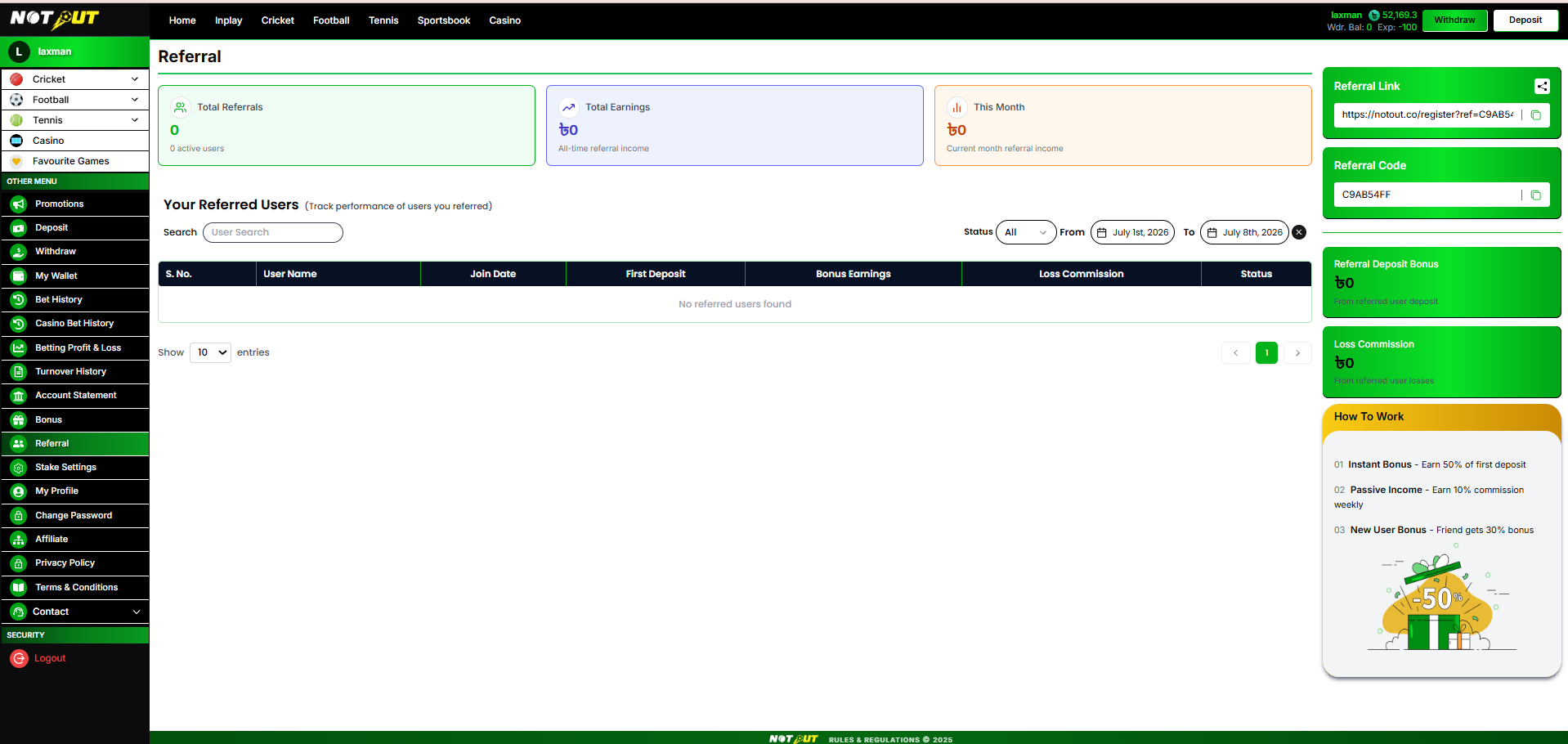
Summary cards & side panel
| Element | Description |
|---|---|
| Total Referrals | Count of referred users (active users) |
| Total Earnings | All-time referral income |
| This Month | Current-month referral income |
| Referral Link | Personal share link (copy & share) — e.g. .../register?ref=CODE |
| Referral Code | Personal referral code (copy) |
| Referral Deposit Bonus | Earnings from referred users' deposits |
| Loss Commission | Earnings from referred users' losses |
Your Referred Users — table
Search by username · Status filter (All / Active / Inactive) · From–To date range.
| Column | Description |
|---|---|
| S. No. | Row number |
| User Name | Referred user |
| Join Date | When they registered |
| First Deposit | Their first deposit amount |
| Bonus Earnings | Referral bonus you earned from them |
| Loss Commission | Loss commission you earned from them |
| Status | Active / Inactive |
Empty state: "No referred users found."
19.1 How To Work / Business Rules
- Instant Bonus — earn 50% of first deposit; Passive Income — 10% commission weekly; New User Bonus — friend gets 30% bonus. (Illustrative; admin-configured.)
- Referral link and code are unique per user; a referred user is attributed when they register via the link/code.
- Referral bonus is granted on the referred user's first deposit; loss commission accrues from referred users' net losses per the configured frequency.
- Read-only reporting; earnings post to the wallet/bonus per configuration.
Not included
Manual referral attribution Sub-affiliate management UI Custom per-user commission rates
Acceptance criteria
| No. | Requirement |
|---|---|
| 1 | Referral link and code display and can be copied / shared. |
| 2 | Summary cards show total referrals and earnings correctly. |
| 3 | Referred users table shows all columns with search, status and date filters. |
| 4 | Referral bonus and loss commission are attributed to the correct referrer. |
Module 20
Affiliate
›
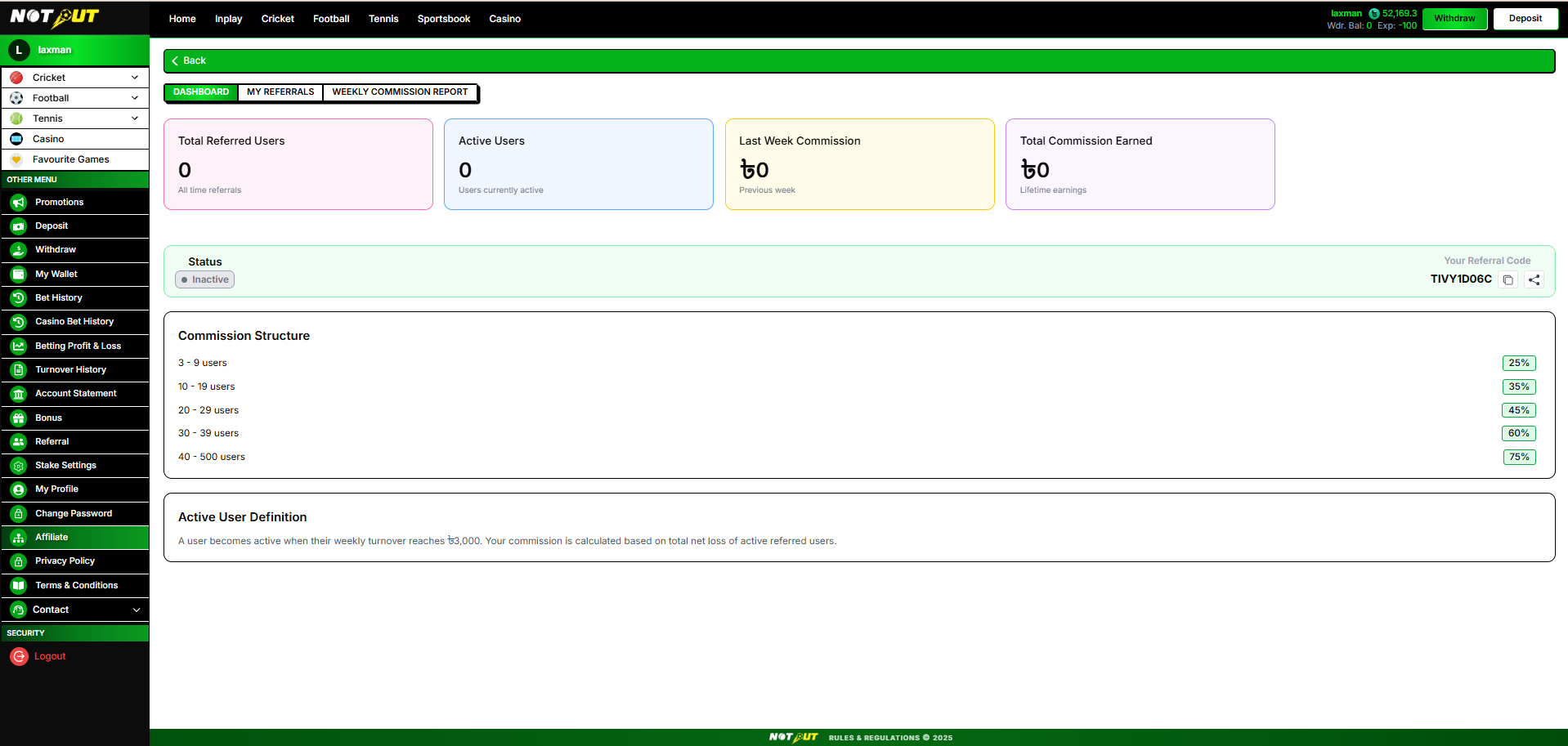
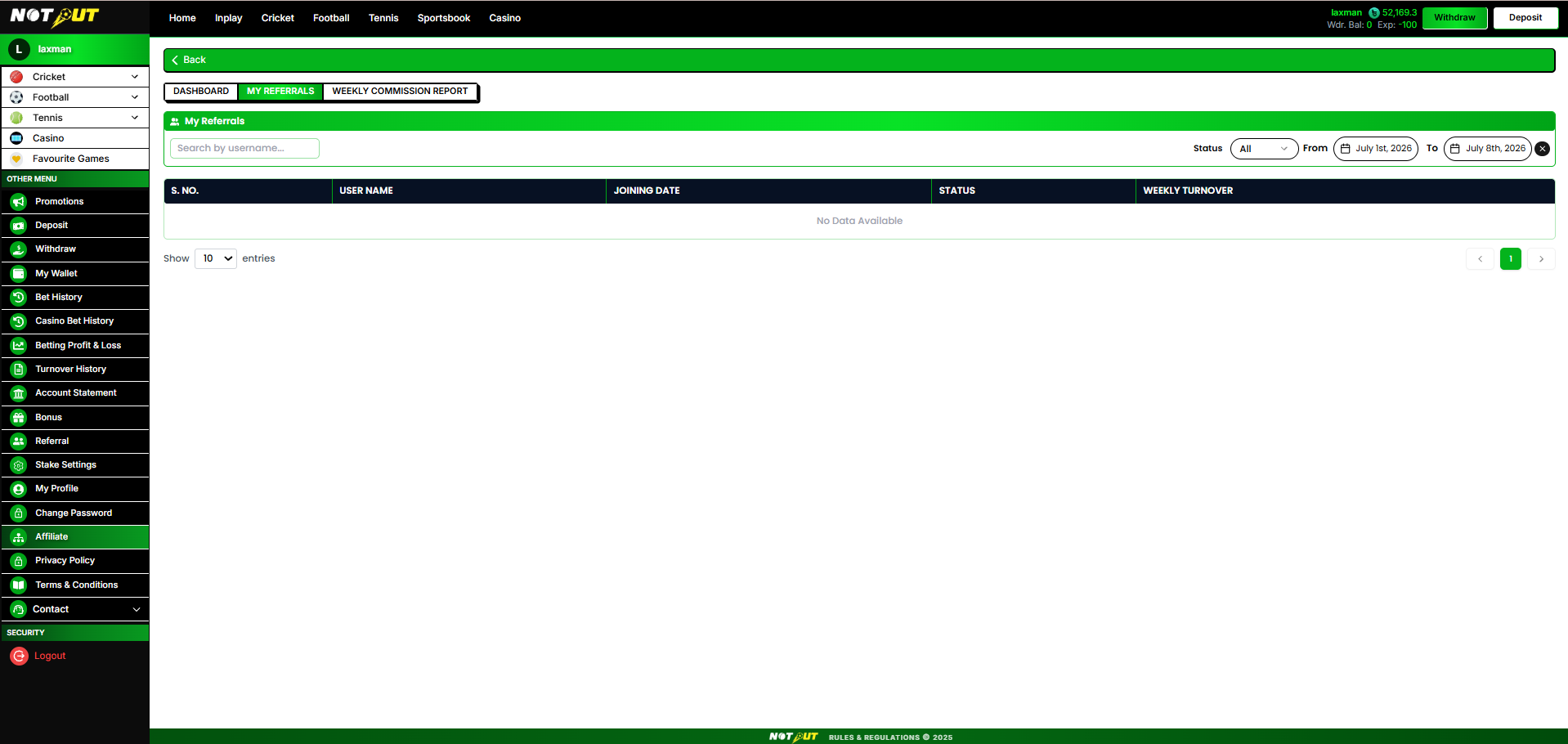
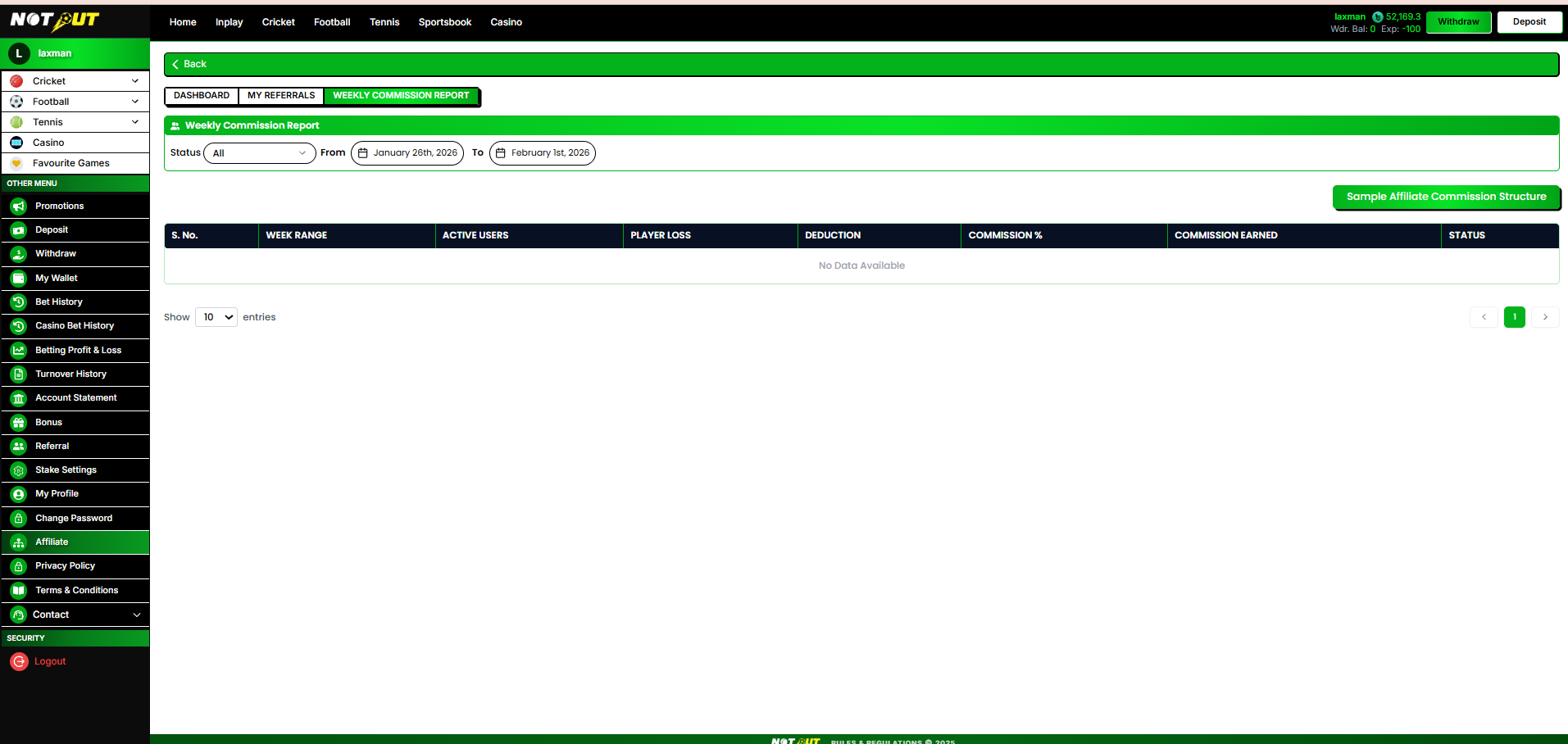
Any user can apply to become an affiliate. Affiliates earn a weekly commission calculated on the net loss of their active referred users, at a tiered rate (25%–75%) that rises with the number of active referred users. Commission is paid after platform deduction and payment charges. The Affiliate page has three tabs: Dashboard, My Referrals, and Weekly Commission Report.
Reference screens
Eligibility & participation
- Register / apply as a NOTOUT affiliate (any user can request).
- Maintain at least 5 active players (each with turnover ≥ ৳3,000, or an admin-customizable amount).
- Affiliate status is granted through admin manual approval of the request — no KYC is required.
- Joining the NOTOUT Affiliate Telegram channel is recommended but not mandatory.
- Keep players active and meet the requirements to receive commission weekly.
Payout
- Commission: tiered 25%–75% based on the number of active referred users (see slab table below).
- Paid on a weekly cadence into the affiliate account (exact payout day is admin-configurable).
- Weekly period is Sunday to Saturday.
Commission Structure (by active referred users)
| Active referred users | Commission % |
|---|---|
| 3 – 9 users | 25% |
| 10 – 19 users | 35% |
| 20 – 29 users | 45% |
| 30 – 39 users | 60% |
| 40 – 500 users | 75% |
The slab table above is an illustrative example only — the number of tiers, thresholds and % rates are fully configurable from Admin → Affiliate Setting → Commission Slabs. A user counts as active when their weekly turnover ≥ ৳3,000 (also configurable).
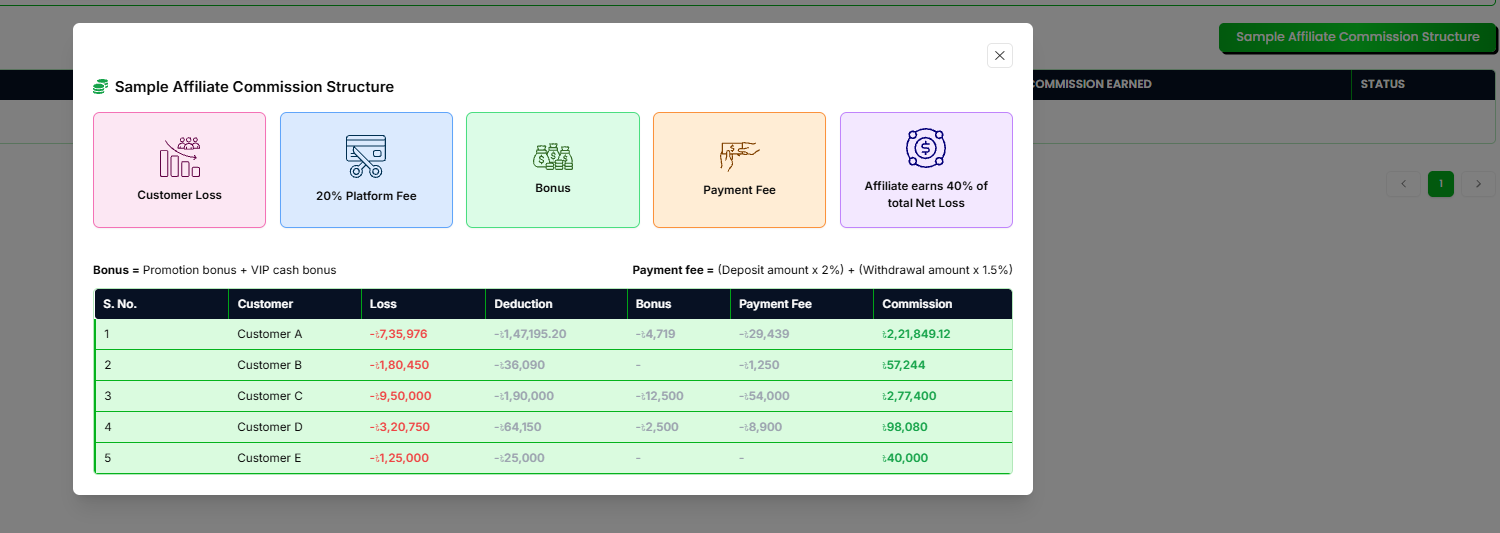
20.1 Net Profit & Commission Calculation
Net profit is calculated across the affiliate's active referred users over the week, then the commission slab % (by active-user count) is applied:
Platform deduction applies only to players the platform profited from (net-losing players); winning players contribute 0. The commission % is the slab matching the affiliate's active-user count that week.
20.2 Worked Example (client's illustration)
This is the client's original conceptual example from the commission understanding document. It uses illustrative rates (18% deduction, 40% commission); the live build uses 20% deduction and the 25%–75% slab above. The example is retained to show the calculation method — with 5 active users the live slab would be 25%.
| Player | Result | Platform profit | Platform cost (18%) | Bonus | Payment fee |
|---|---|---|---|---|---|
| A | Loss ৳1,000,000 | +1,000,000 | 180,000 | 20,000 | 40,000 |
| B | Win ৳300,000 | −300,000 | 0 | 25,000 | 12,000 |
| C | Win ৳500,000 | −500,000 | 0 | 10,000 | 20,000 |
| D | Loss ৳1,500,000 | +1,500,000 | 270,000 | 40,000 | 60,000 |
| E | Loss ৳2,700,000 | +2,700,000 | 486,000 | 10,000 | 108,000 |
Player A payment fee = deposit fee 2% of ৳1,500,000 (30,000) + withdrawal fee 1.5% of ৳666,667 (10,000) = ৳40,000. Figures illustrate the method; percentages (18% platform cost, 2% / 1.5% fees, 40% commission) are admin-configurable.
20.3 Affiliate Page — Dashboard tab
Summary cards
| Card | Description |
|---|---|
| Total Referred Users | All-time referrals |
| Active Users | Users currently active |
| Last Week Commission | Previous week's commission |
| Total Commission Earned | Lifetime earnings |
Status & referral code
Affiliate Status (Active / Inactive) and the affiliate's personal Referral Code with copy & share actions.
Commission Structure & Active User Definition
The Dashboard shows the commission slab table (25%–75% by active-user count, above) and the definition: a user becomes active when their weekly turnover reaches ৳3,000; commission is calculated on the total net loss of active referred users.
20.4 My Referrals tab
Search by username · Status filter (All / Active / Inactive) · From–To date range · entries-per-page. Empty state: "No Data Available".
| Column | Description |
|---|---|
| S. No. | Row number |
| User Name | Referred user |
| Joining Date | When they registered |
| Status | Active / Inactive |
| Weekly Turnover | Their turnover for the week (drives active status) |
20.5 Weekly Commission Report tab
Status filter · From–To week range · entries-per-page · a "Sample Affiliate Commission Structure" reference button. Empty state: "No Data Available".
| Column | Description |
|---|---|
| S. No. | Row number |
| Week Range | Commission week |
| Active Users | Active referred users that week |
| Player Loss | Net loss of active referred users |
| Deduction | Platform deduction + bonuses + payment charges |
| Commission % | Applied slab % |
| Commission Earned | Payable commission |
| Status | Paid / Not Commission |
Business rules
- Any user can request affiliate status; activation is via admin manual approval and meeting the eligibility requirements (no KYC required).
- A user counts as "active" when their weekly turnover ≥ the configured minimum (৳3,000 default).
- Commission % is the slab matching the affiliate's active-user count (25%–75%).
- Commission is calculated weekly (Sun–Sat) on active users' net loss less deductions, and paid on a weekly cadence (exact payout day admin-configurable).
- All rates (commission slabs, platform deduction %, charges, active-user threshold, payout day) are admin-configurable.
- Weeks where the affiliate does not qualify show status Not Commission.
Not included
Self-serve marketing assets / banners Sub-affiliate hierarchy UI Real-time commission dashboard Manual payout requests
Acceptance criteria
| No. | Requirement |
|---|---|
| 1 | A user can request to become an affiliate. |
| 2 | Eligibility (≥5 active players, KYC, Telegram) is enforced / displayed. |
| 3 | Net profit is calculated (players' net loss − platform deduction − bonuses − charges). |
| 4 | Commission % is the slab matching the affiliate's active-user count (25%–75%). |
| 5 | Dashboard, My Referrals and Weekly Commission Report tabs display correctly. |
| 6 | Weekly payout and Paid / Not Commission status are shown. |
| 7 | Active-user threshold (turnover ≥ ৳3,000) is applied. |
Module 21
Change Password
›
Lets the user change their account password from within the platform.
Reference screen
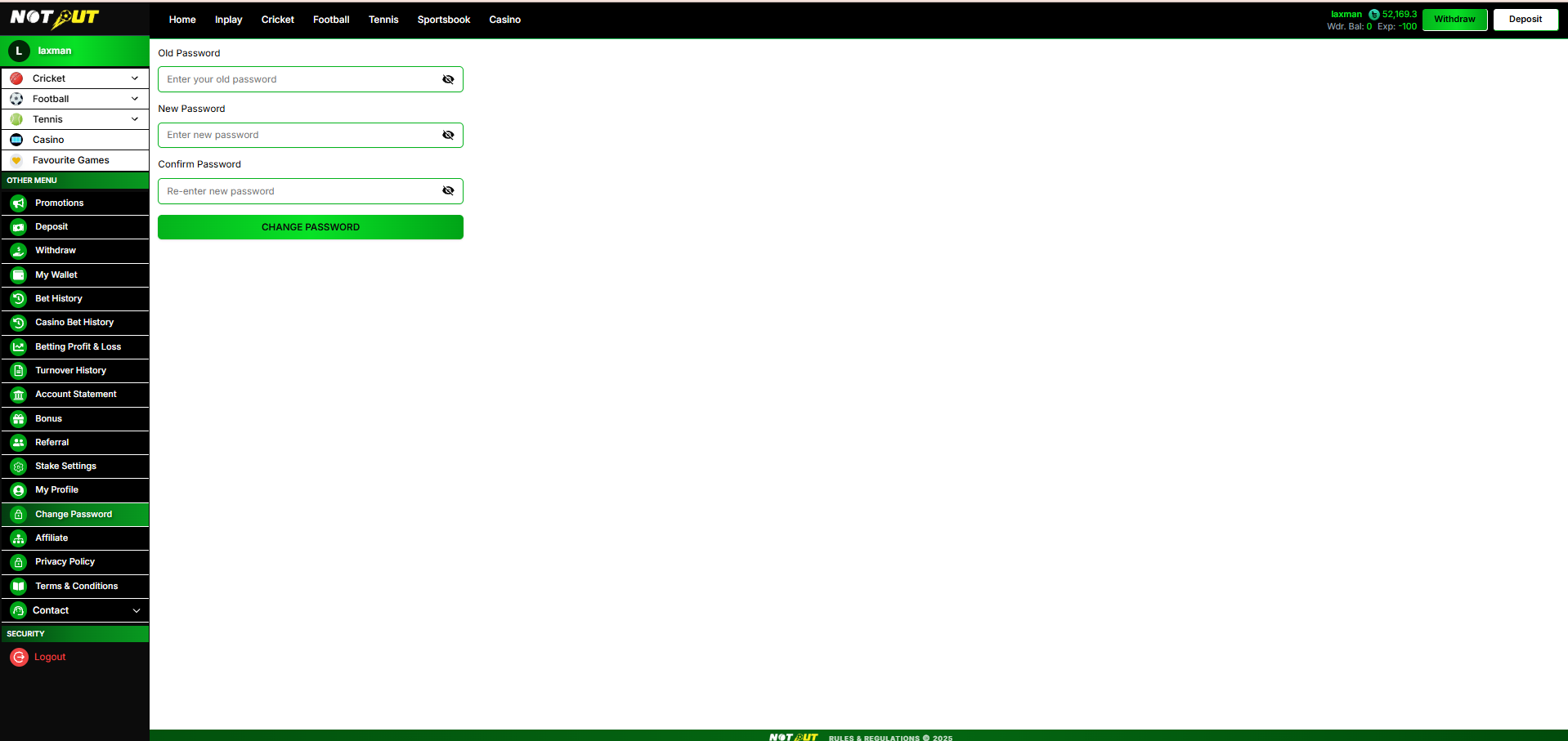
Fields
| Field | Detail |
|---|---|
| Old Password | Current password (show / hide toggle) |
| New Password | New password (show / hide toggle) |
| Confirm Password | Re-enter new password (show / hide toggle) |
Validation & rules
- Old password must be correct.
- New password must meet security requirements.
- New Password and Confirm Password must match.
- On success, the password is updated (re-login may be required).
Acceptance criteria
| No. | Requirement |
|---|---|
| 1 | All three fields with show/hide toggles are present. |
| 2 | Incorrect old password, weak password and mismatch are rejected with a message. |
| 3 | Successful change updates the password. |
Module 22
Contact
›
An expandable menu of external contact channels. Each item simply redirects the user to the configured link / number / channel — there is no in-app chat.
Reference screen
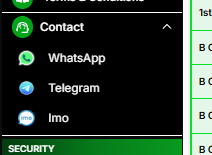
Channels
| Channel | Action |
|---|---|
| Redirect to configured WhatsApp number / link | |
| Telegram | Redirect to configured Telegram channel / link |
| Imo | Redirect to configured Imo number / link |
Business rules
- Links / numbers are configurable from the Admin Panel.
- Each item opens the external app / link; no in-app chat channel is included.
- Only configured channels are displayed.
Acceptance criteria
| No. | Requirement |
|---|---|
| 1 | Contact expands to show the configured channels. |
| 2 | Each channel redirects to the correct external link / number. |
Module 23
Static Content — Privacy Policy & Terms
›
Static content pages displaying the platform's Privacy Policy and Terms & Conditions.
Behaviour
- Content is static / informational, managed from the Admin Panel (CMS).
- Rendered as a read-only content page; no user input.
- Accessible to all users, including logged-out where applicable.
Acceptance criteria
| No. | Requirement |
|---|---|
| 1 | Privacy Policy and Terms & Conditions pages open from the sidebar. |
| 2 | Content displays correctly and is editable from the Admin Panel. |
Module 24
Logout
›
Ends the current user session.
Behaviour
- Clears the session / token and returns the user to the landing / login screen.
- Demo sessions are ended and the temporary demo account is discarded.
Acceptance criteria
| No. | Requirement |
|---|---|
| 1 | Logout ends the session and redirects to landing / login. |
| 2 | Protected pages are inaccessible after logout. |
— Client Sign-off
By signing this document, the client confirms that the module requirements described above have been reviewed and approved. Any feature not explicitly mentioned in this document will be considered outside the agreed scope and may require a separate Change Request (CR).
| Name & Role | Signature | Date |
|---|---|---|
| Client Representative | ||
| Project Manager |
Remarks / requested changes: